Leave Approval Process: Steps That Don't Stall
A simple leave approval process for small teams: who decides, how fast, who covers when they are away, and a request template your staff can copy.
On this page
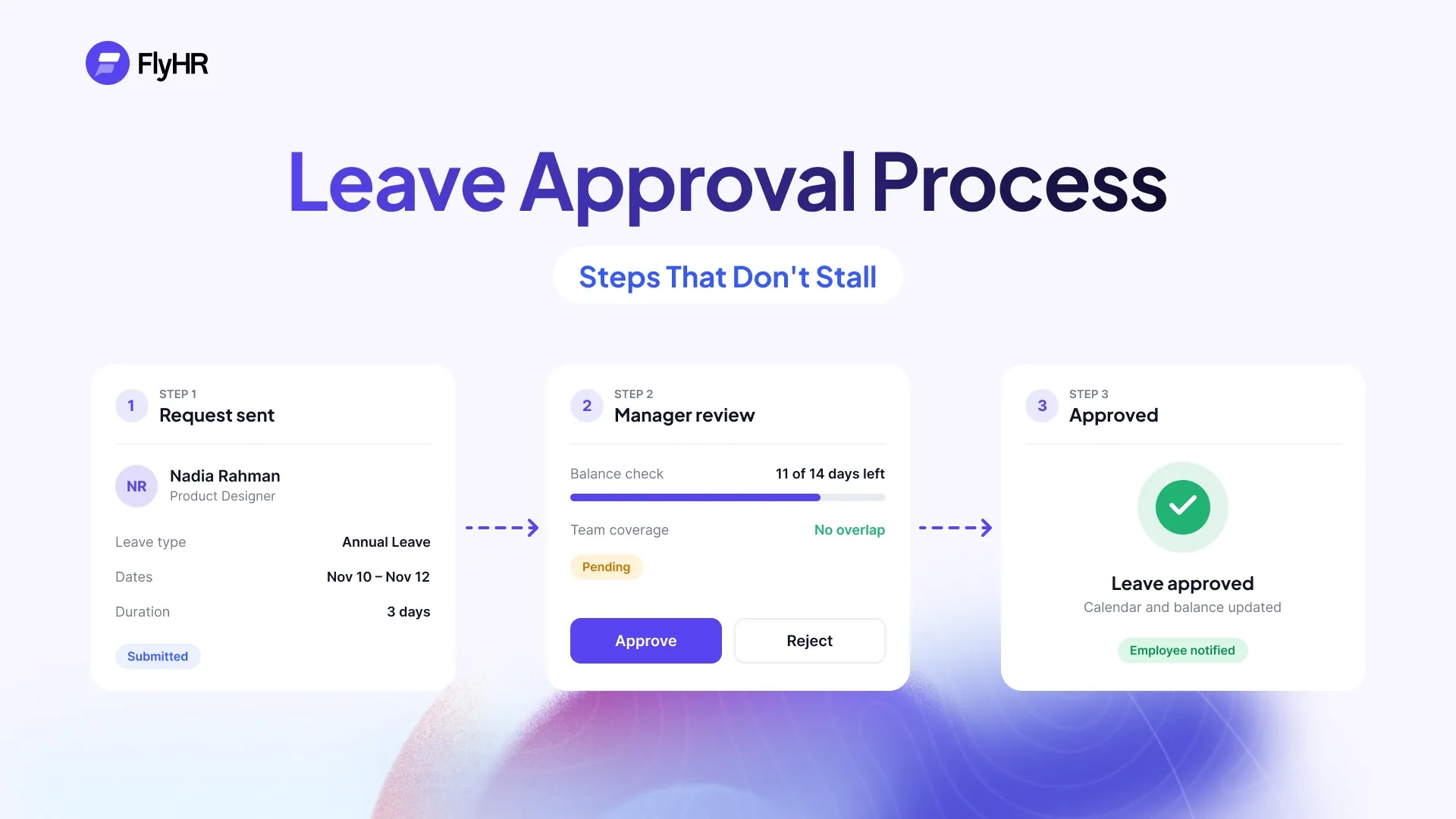
A leave approval process answers four questions: who decides a request, in what order, how quickly, and who covers when that person is away. The short version has five steps. The employee asks, the approver checks the balance and the calendar, decides, records it, and tells the person. This guide walks through each step and shows the setup in FlyHR, the HR plugin for WordPress by weDevs.
Approvals are one part of a wider leave management system. That guide covers types, policies and balances. This one covers the moment a request arrives.
The Five Steps of a Leave Approval Process
Each step ends with what “done” looks like. A step with no clear finish is where requests pile up.
1. The Employee Asks
The request goes to one place, in writing. Not a hallway chat or a busy group thread.
Done: the request names the dates, the leave type and who covers the work, and the approver finds it without searching.
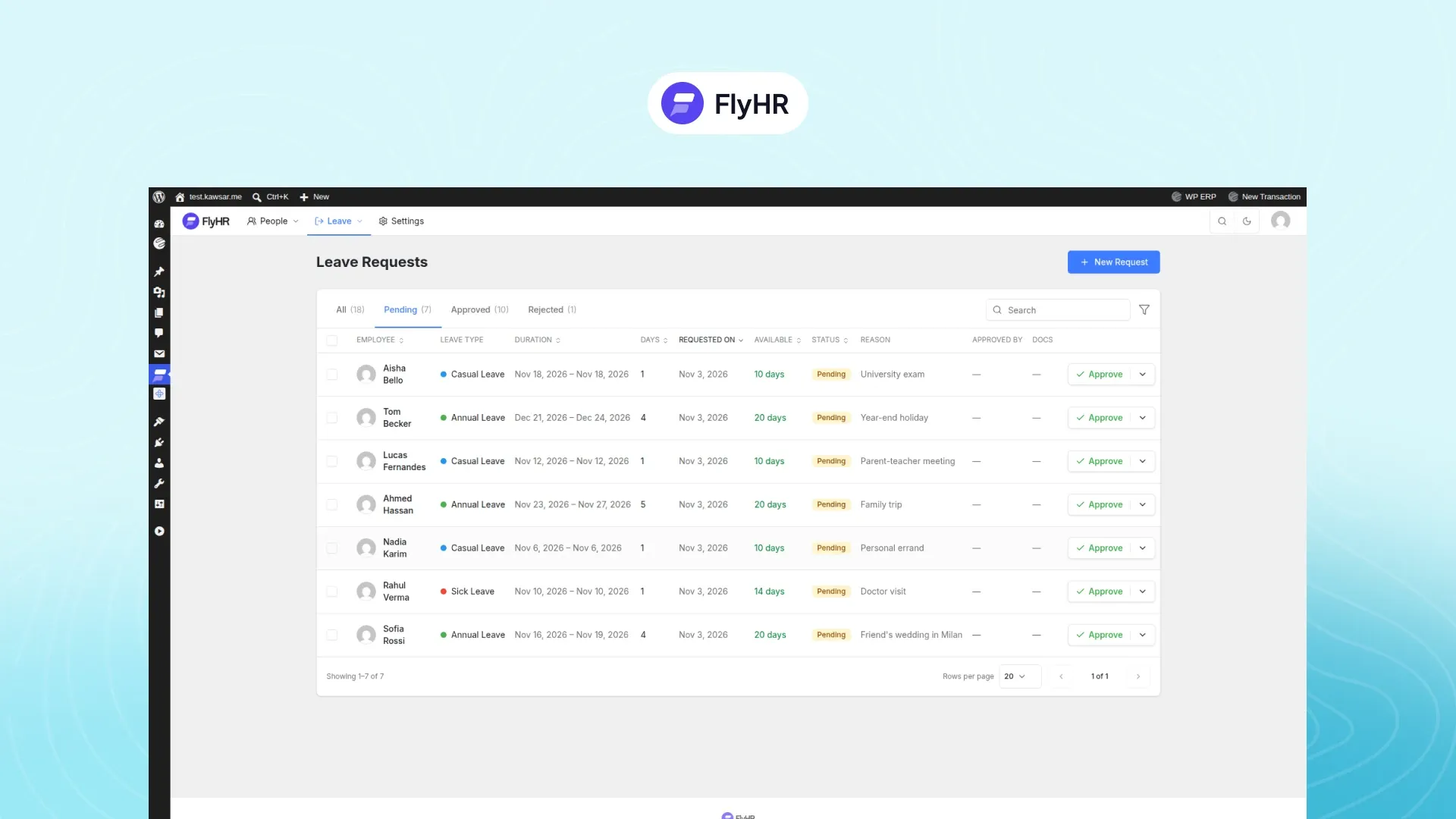
2. Check the Balance and the Calendar
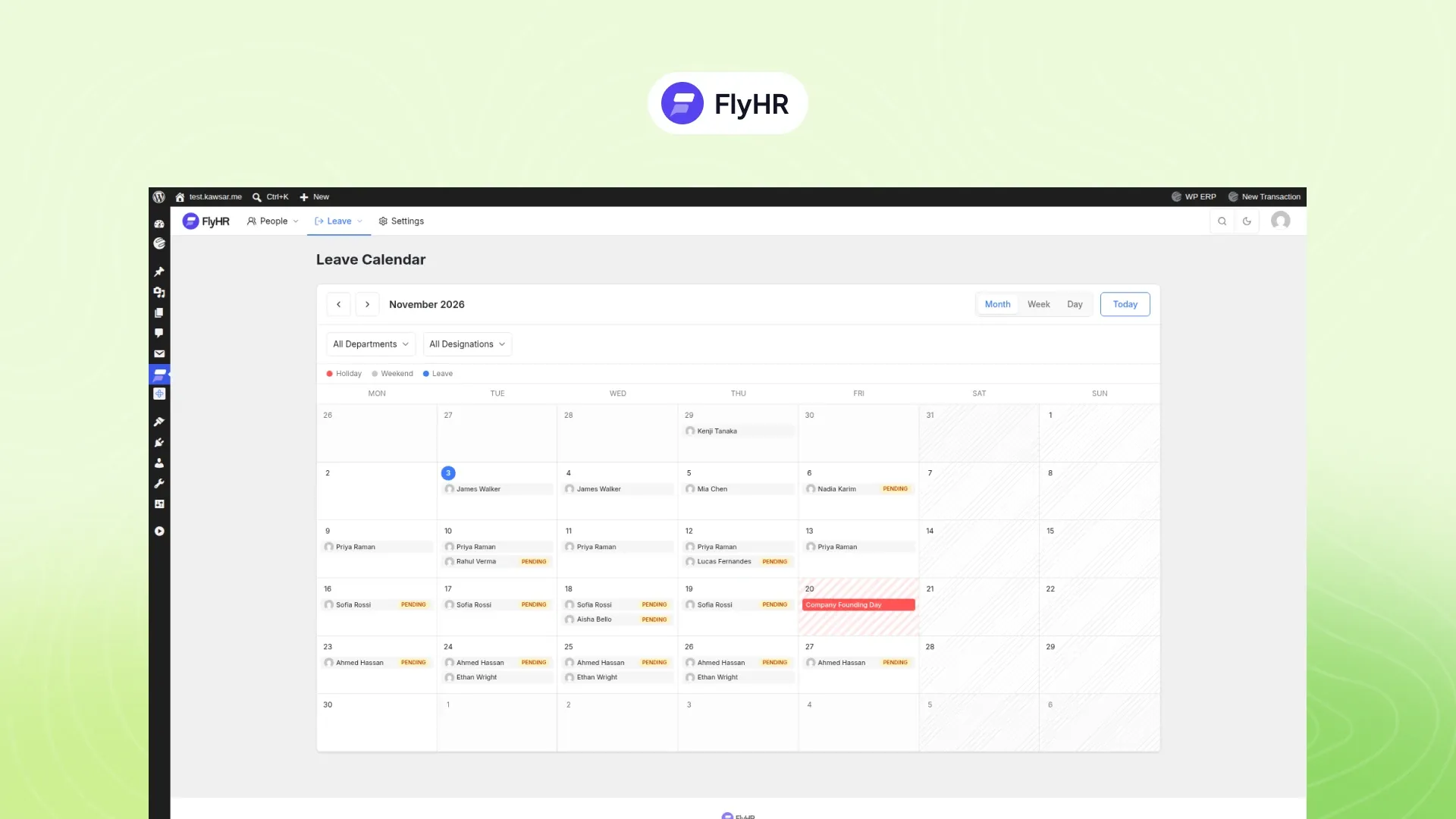
Does the person have the days? Who else is away on those dates?
Done: you know the balance after this request, and whether the team still has enough people that week.
3. Decide
Approve or reject. A request left pending is a decision too, just a slow and unclear one.
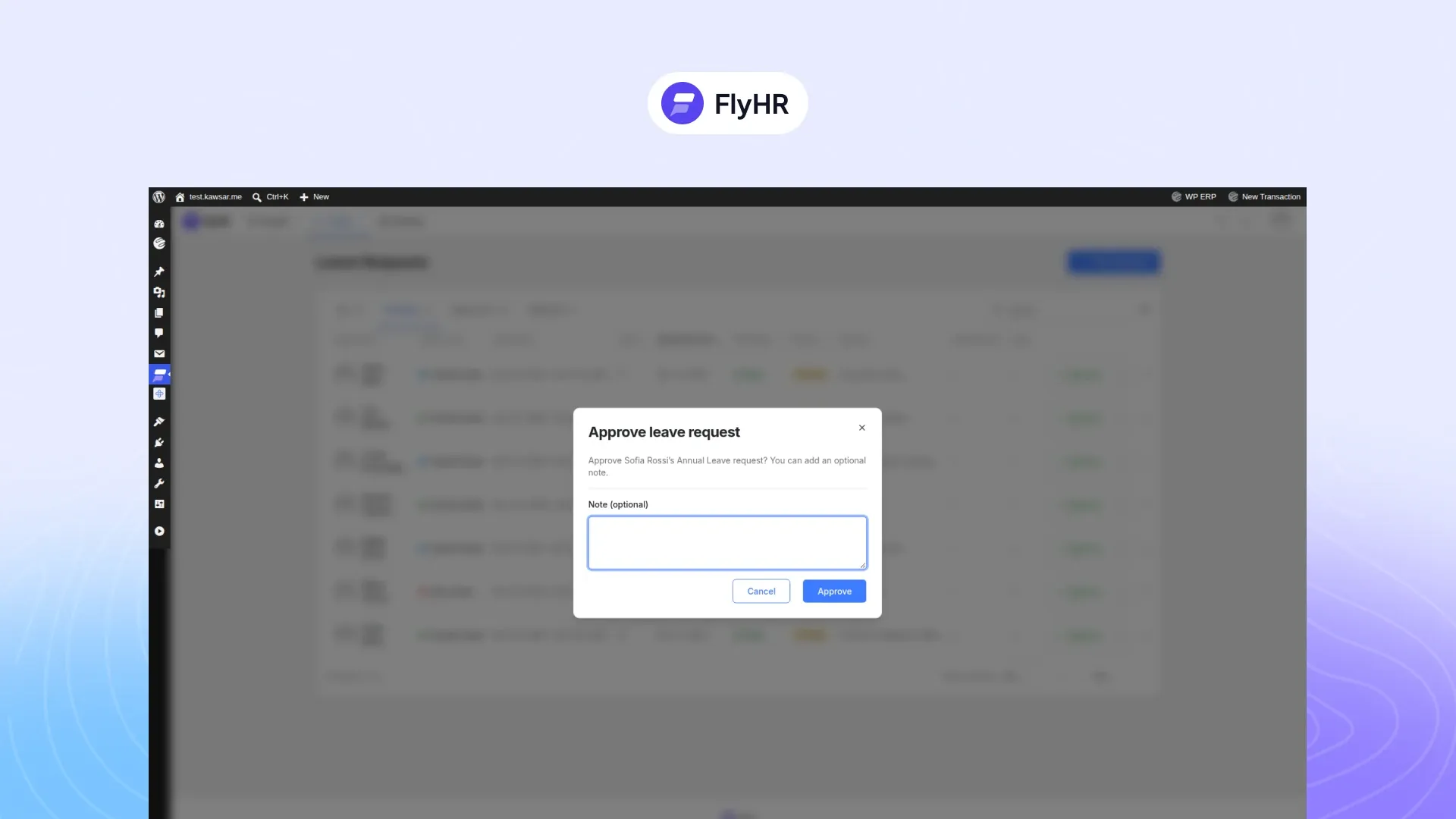
Done: the request has a status, and it is not “waiting”.
4. Record It
The decision goes where the balance lives. A yes in an email that never reaches the leave record is how balances drift.
Done: the balance shows the days taken, and the leave appears on the team calendar.
5. Tell the Person
The employee hears the answer from the system or the approver, not from a colleague.
Done: the employee knows the outcome and, if it was a no, the reason.
Who Should Approve
The right approver depends on team size. Fewer layers mean faster answers.
| Team size | Who decides | Why |
|---|---|---|
| 5 people | The owner | One person already knows everyone’s schedule. A second layer only adds waiting. |
| 15 people | Each team lead | Leads know who is busy and who can cover. |
| 50 people | Team lead, then HR | The lead checks cover, HR checks fairness. In FlyHR this is multi-level approval, on the Starter plan. |
Write the rule down in one line: “Your department lead decides. If they are away, HR decides.”
Set a response time too, as a team habit. Pick a number, such as two working days, and keep to it. A sick day needs an answer the same day.
When the Approver Is Away
Every process needs a backup approver. Otherwise a lead’s own time off freezes the team’s requests.
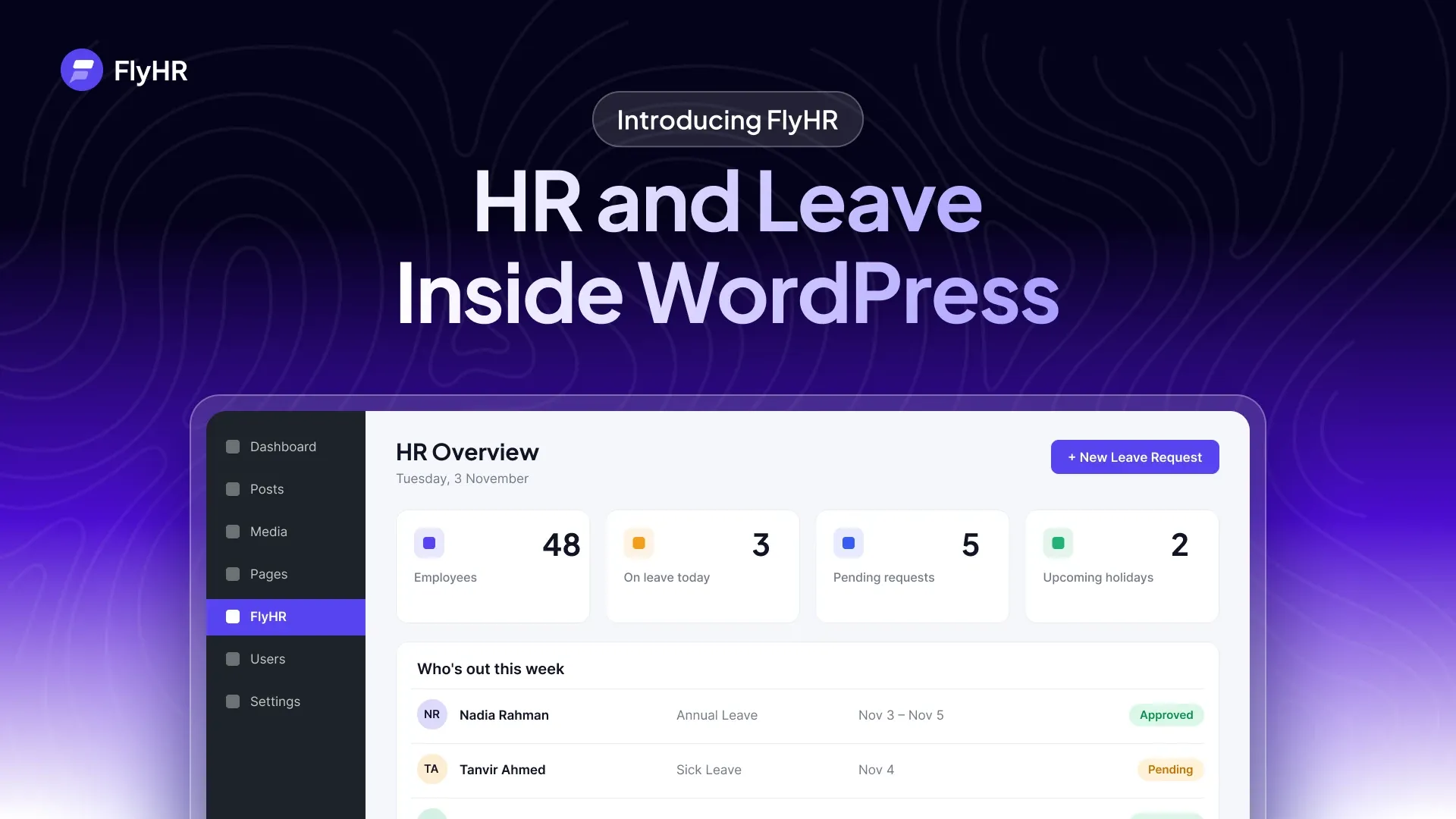
In FlyHR, department leads decide for their own team, and HR managers can decide on any request. So when a lead is out, an HR manager can decide their team’s requests. In a small company that may be the owner, because WordPress administrators are HR managers automatically.
Agree on it before anyone is away. “My team’s requests are yours until I’m back on the 14th” avoids a week of silence.
Saying No Well
Sometimes the answer is no: too many people out, a deadline, a busy season. A no is fine. A no with nothing attached damages trust.
Always give a reason, short and about the work. “Three of five support staff are already off that week” is a reason. “Not a good time” is not.
Offer other dates where you can. “The week after works” turns a refusal into a plan.
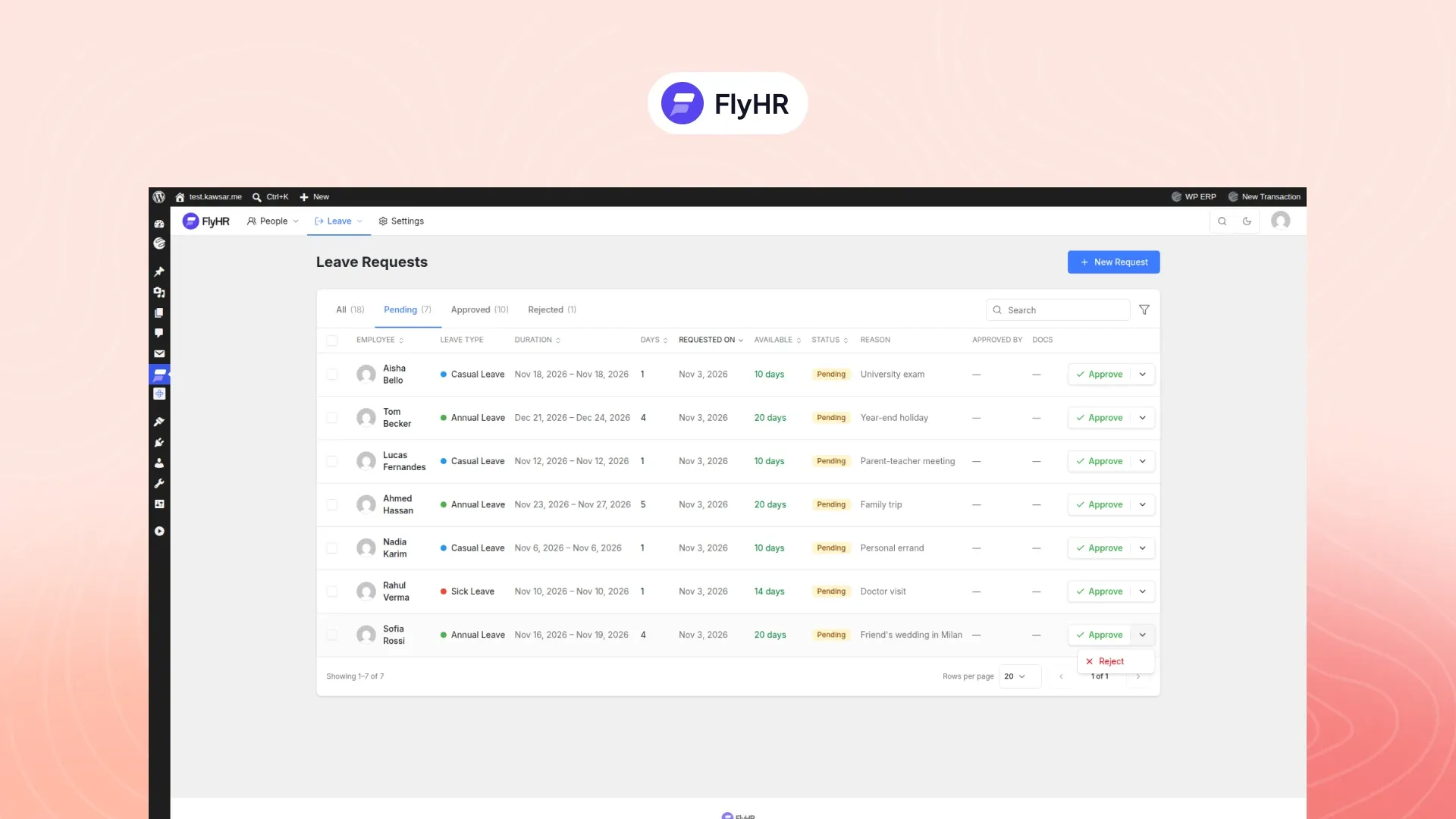
Know what a decision does to the balance. In FlyHR a balance is the sum of its entries: days granted by a policy, days taken by approved leave, and days returned when an approval is reversed. If plans change after approval, reject the approved request and the days return to the balance as a new entry.
For Employees: How to Ask for Time Off
In the UK this is often called a holiday request. A clear request gets a faster yes.
Include these five things:
- Dates. The first and last day.
- Leave type. Annual, sick, casual or another.
- Your balance. Check it first.
- Cover. Who handles your work, and where the handover notes are.
- Attachment, if needed. Such as a medical note for sick leave.
Your policy may set a minimum notice. If not, ask as early as you can, and earlier still for long breaks.
Here is a message you can copy and adapt:
Hi Priya,
I’d like to request annual leave from Monday, December 7 to Friday, December 11, five working days. My balance shows 12 days left. Sam has agreed to cover client emails, and my handover notes will be in the team folder by Friday, December 4. I can be reached by phone for anything urgent.
If those dates don’t work, let me know and I’ll suggest others.
Thanks, Alex
If your company uses FlyHR, you file the request yourself. Sign in with your WordPress account, check your balances, add the dates and a file if needed, then follow the request’s status. Our employee self-service guide covers what else staff can do without asking HR. With the FlyHR mobile app, staff can also check balances and request leave from their phone. The standard app comes with the Agency plan, and a custom-branded app can be ordered on any paid plan.
Setting It Up in WordPress
FlyHR, the HR plugin for WordPress by weDevs, runs this process in the free plugin, as of November 2026. The setup, in order:
- Set a lead on each department. Departments can have parent and child teams, each with a lead who decides for that team.
- Check who your HR managers are. WordPress administrators are HR managers automatically, and HR managers can decide any request.
- Set the working week and holidays. Mark full, half and non-working days, then add holidays one by one or as date ranges. Request dates are checked against both, so non-working days and holidays are not counted as leave.
- Decide on extra unpaid leave. Staff can request past their balance only if you turn on the Extra Unpaid Leave setting.
- Ask for attachments. A request can carry a file, such as a medical note.
- Rely on email alerts. HR managers get an email for each new request, and the employee gets one when it is decided.
- Use bulk decisions on busy weeks. Approve or reject several requests at once.
The details are on the leave management features page.
Some teams want the lead to approve first and HR to have the final say. That is multi-level approval, on the Starter plan. See pricing for what each plan adds.
A Weekly Two-Minute Check
Once a week, same day, same time.
- Pending requests. Start with the oldest. Anything past your response time gets decided today.
- Next week’s calendar. Use the leave calendar’s week view, filtered by department. Look for days when one team is short.
- Balances that look wrong. If a number surprises you, open the person’s balance and read its history. A balance of 20 days granted with 3 taken should read 17.
Frequently Asked Questions
How Long Should Leave Approval Take?
Treat it as a team habit and set your own limit. Two working days is a sensible target for planned leave. Same-day answers suit short-notice requests, such as a sick day. A request with no answer for a week tells the employee their time off does not matter.
Who Approves Leave When the Manager Is Away?
A named backup approver, agreed before the manager leaves. In FlyHR, department leads decide for their own team, and HR managers can decide on any request. So an HR manager covers when a lead is away. In small companies this may be the owner, since WordPress administrators are HR managers automatically.
Should a Leave Rejection Include a Reason?
Yes, always. A short reason about the work, such as cover or a deadline, helps the employee plan and keeps trust intact. Offer other dates where you can. A rejection with no reason leaves people guessing, even when the decision was fair.
What Should a Leave Request Include?
The first and last dates, the leave type, and who covers the work while you are out. Check your balance before you send it. For sick leave, attach a medical note if your company asks for one. A clear request is easier to approve.
Can an Approved Leave Request Be Canceled?
Yes. Plans change, and a good process allows for it. In FlyHR, an approved request can be rejected, and the days return to the balance as a new entry. Every day granted, taken or given back is recorded as its own entry, so you can see how the balance was reached. Ask your approver as soon as plans change.
For leave types, policies and the calendar, see our guide to setting up a leave management system in WordPress.
Written by
Kawsar Ahamed
Digital Marketing Specialist
Kawsar writes about HR and business tools that run inside WordPress, for small teams that want to keep things simple.