Leave Management System: A WordPress Setup Guide
How a leave management system works for a small team: types, policies, balances, approvals and a calendar, set up step by step inside WordPress.
On this page
A leave management system keeps four things in one place: your leave types and policies, each person’s balance, the requests and decisions, and a calendar of who is away. For a small team it can be a spreadsheet, a cloud app or a plugin in the WordPress site you already run. This guide sets one up with FlyHR, the HR plugin for WordPress by weDevs.
Three Ways Small Teams Run Leave
Small teams usually run leave in one of three ways. They differ in who holds the data and what gives way first.
| Spreadsheet | Cloud leave app | Plugin inside WordPress | |
|---|---|---|---|
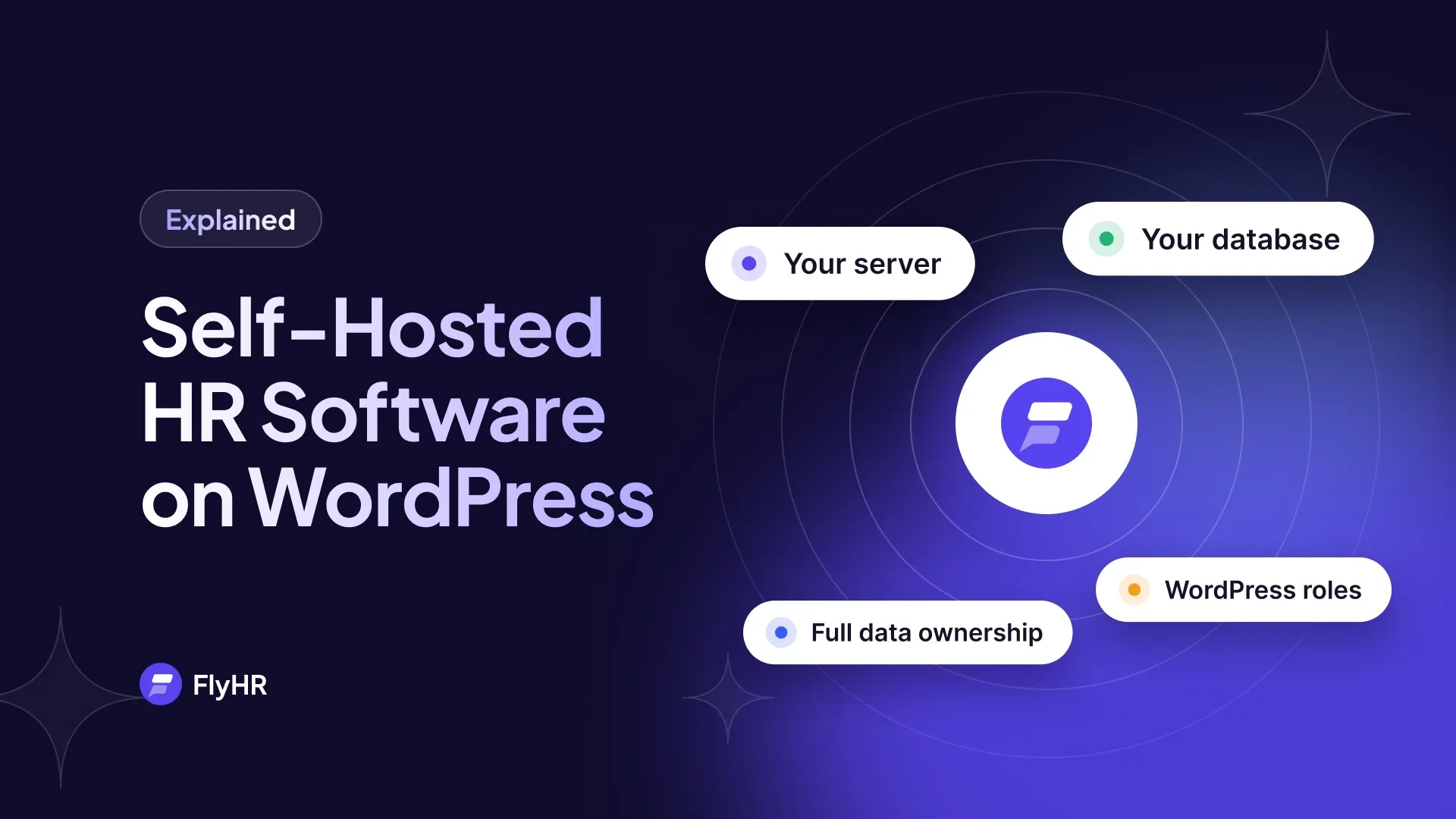
| Who holds the data | Whoever has the file | The vendor, on its servers | You, in your own WordPress database |
| How cost grows with headcount | It does not, but the work does | Usually a monthly fee for each person | With FlyHR, no per-employee fees on any plan |
| Who approves, and how | A manager replies by email or chat, then someone updates the sheet | Approvers decide in the app, with its own login | A department lead or HR manager decides in the WordPress admin |
| What breaks first | Balances, once two people edit the file | The bill, with every new hire | Your site’s upkeep: someone has to keep WordPress updated and backed up |
A spreadsheet works for three people, until nobody is sure whether Tom has 12 days left or 14. A plugin keeps the records where your website already lives.
The Six Parts of a Leave Management System
Leave Types
The kinds of leave you offer, such as annual, sick or casual leave.
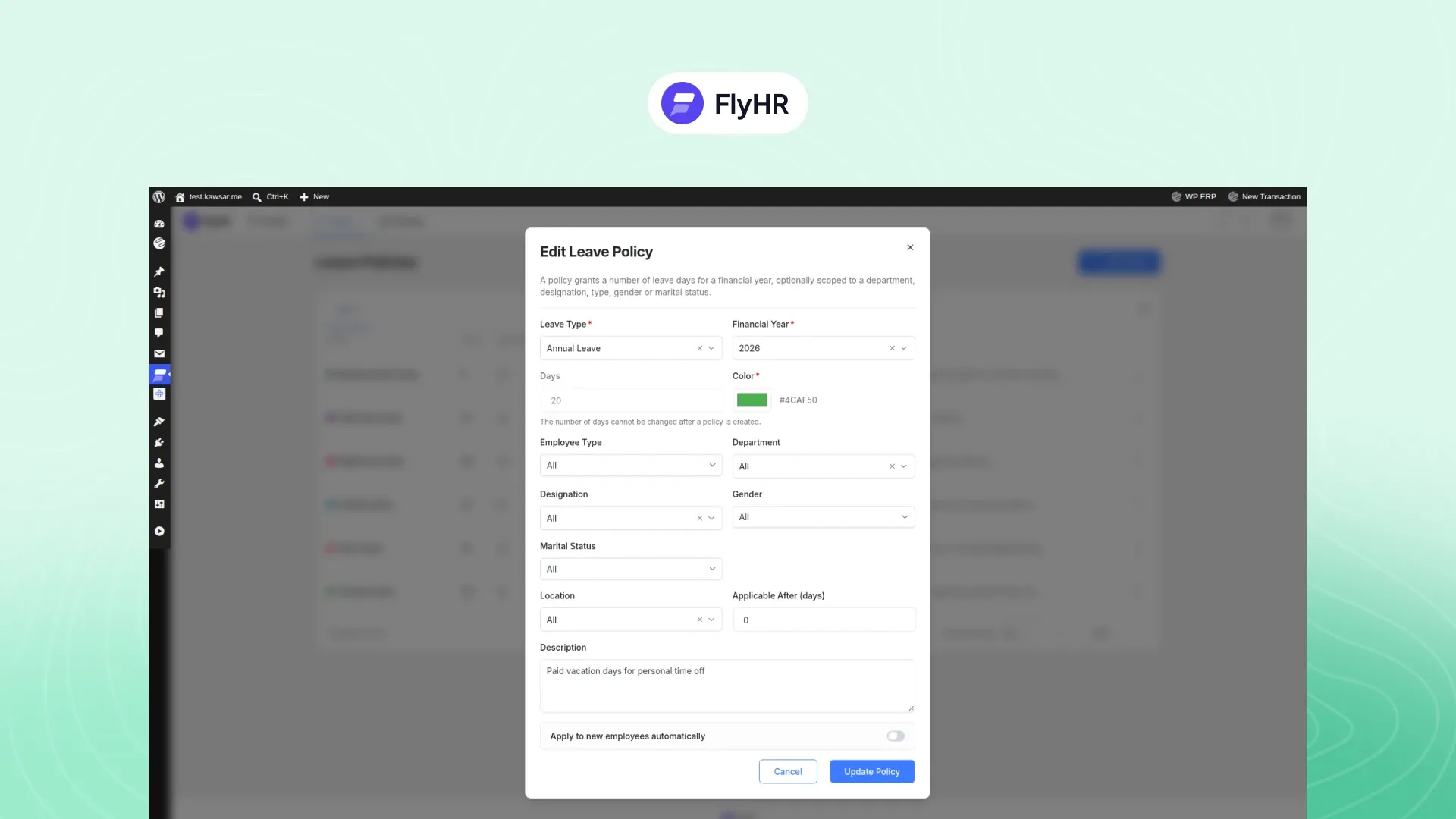
Policies
The rule for one group: how many days of a leave type they get in a financial year, and when the leave starts. Full-time staff at head office might get 20 days of annual leave after a 90-day probation.
Entitlements
A policy applied to a person. “Full-time staff get 20 days” becomes “Sara gets 20 days”.
Requests and Approvals
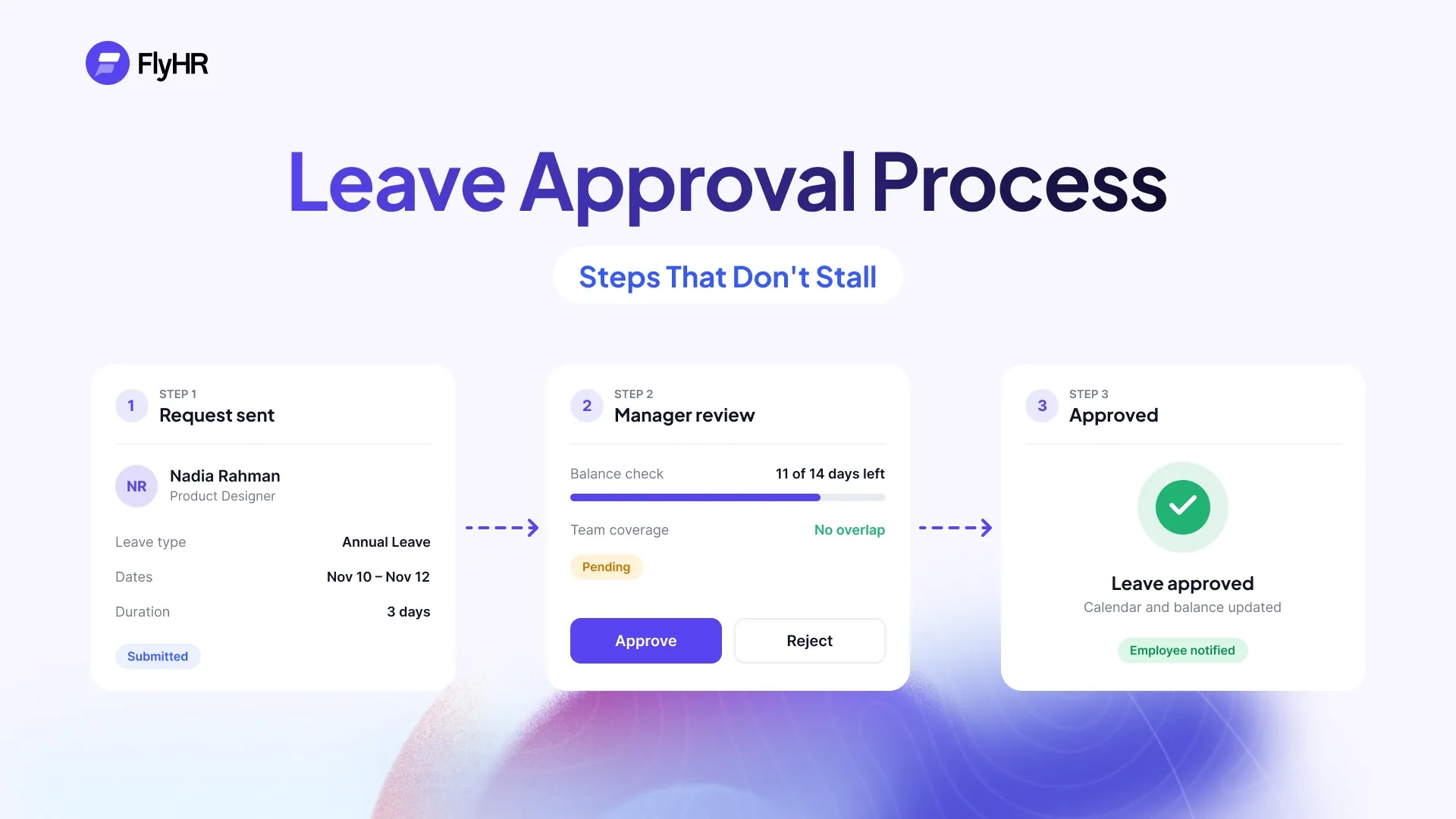
An employee asks for dates. Someone with the right to decide approves or rejects, and the employee is told the result.
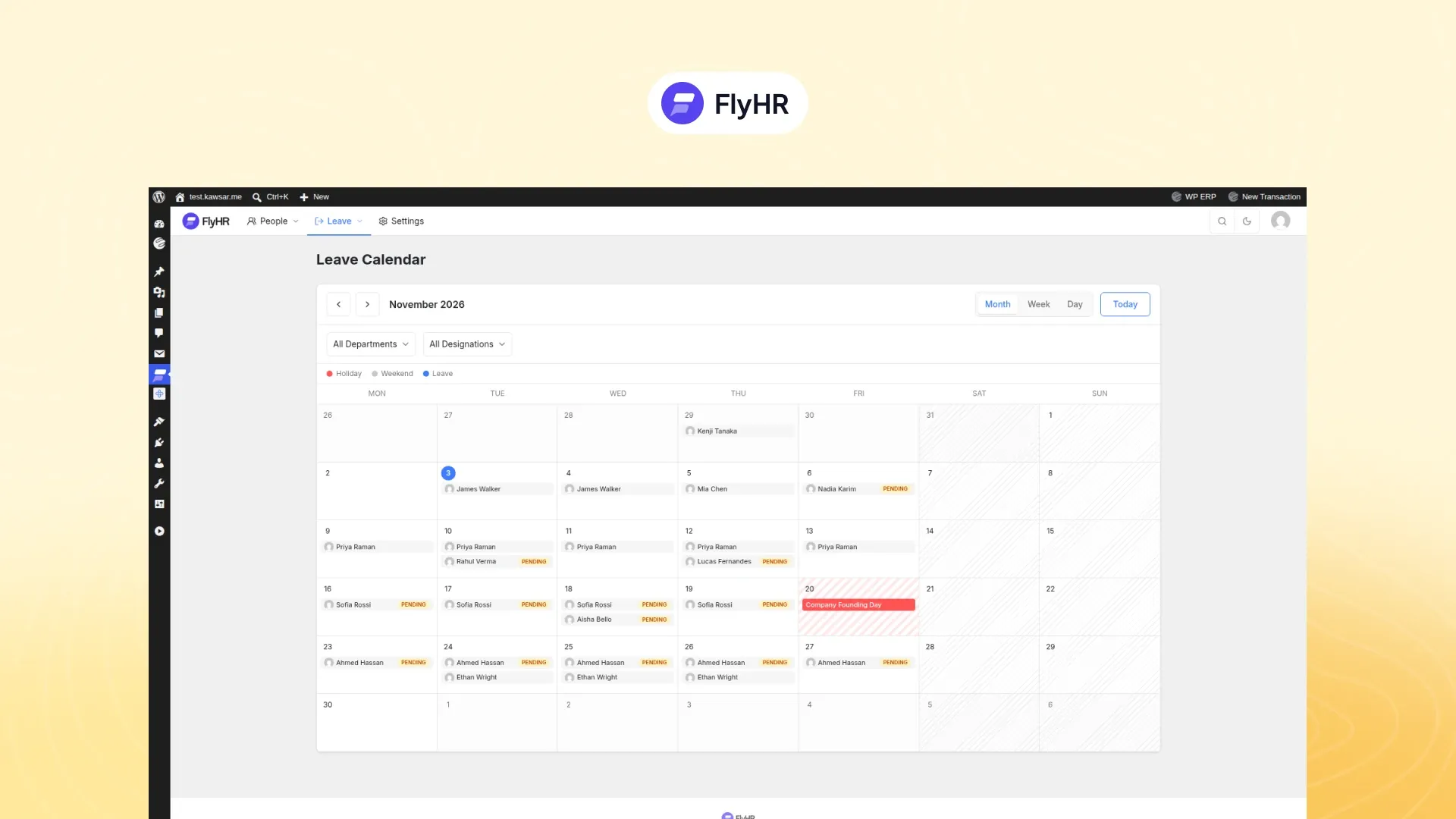
The Calendar
Who is away and when. It is how a lead spots three people asking for the same week.
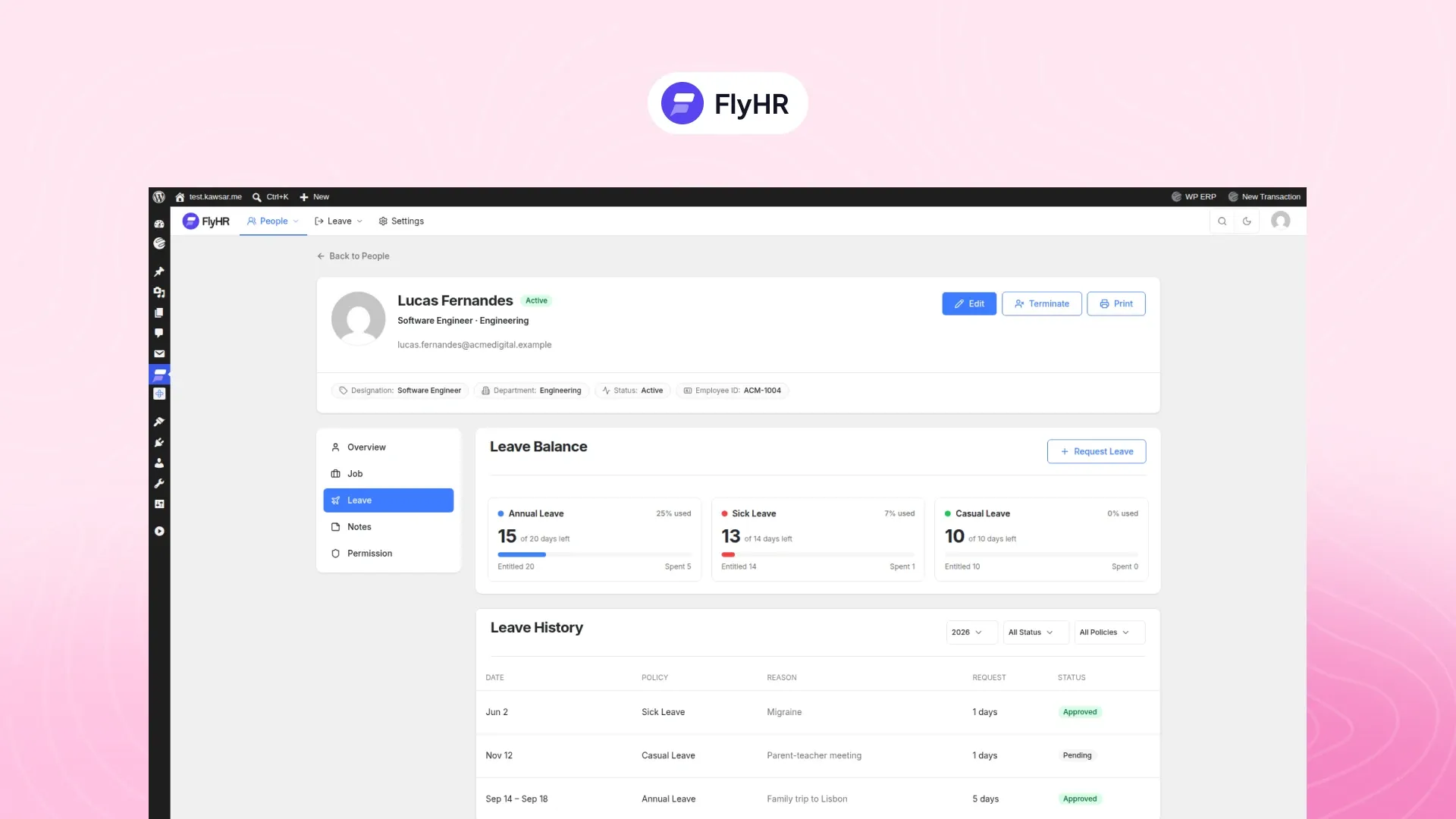
Balances
What each person has left, worked out below.
How a Leave Balance Is Worked Out
In FlyHR, every entitlement, deduction and refund is its own ledger entry, and the balance is the sum of them. You can always see how a balance was reached.
Sara’s annual leave policy grants her 20 days for the financial year. She takes three days, Tuesday to Thursday, and her lead approves the request.
| Entry | Days |
|---|---|
| Granted by the annual leave policy | +20 |
| Taken, approved request (Tuesday to Thursday) | -3 |
| Balance | 17 |
Two details change the count:
- Days off are skipped. Non-working days and holidays are not counted as leave. A request from Friday to Tuesday counts three days, not five, when your weekend is Saturday and Sunday.
- Reversals add an entry. If you reject a request that was already approved, the days return to the balance as a new entry. Sara’s record would then show 20 granted, 3 taken and 3 returned, and her balance would read 20 again.
When someone asks why their balance is 17, the answer is on screen, line by line.
Setting Up Leave in WordPress with FlyHR
FlyHR is on WordPress.org and needs WordPress 6.4 or newer and PHP 7.4 or newer. After you activate it, a seven-step setup wizard asks for your company profile and financial year, departments, job titles, leave year and working days. The steps below cover the leave side, as of November 2026.
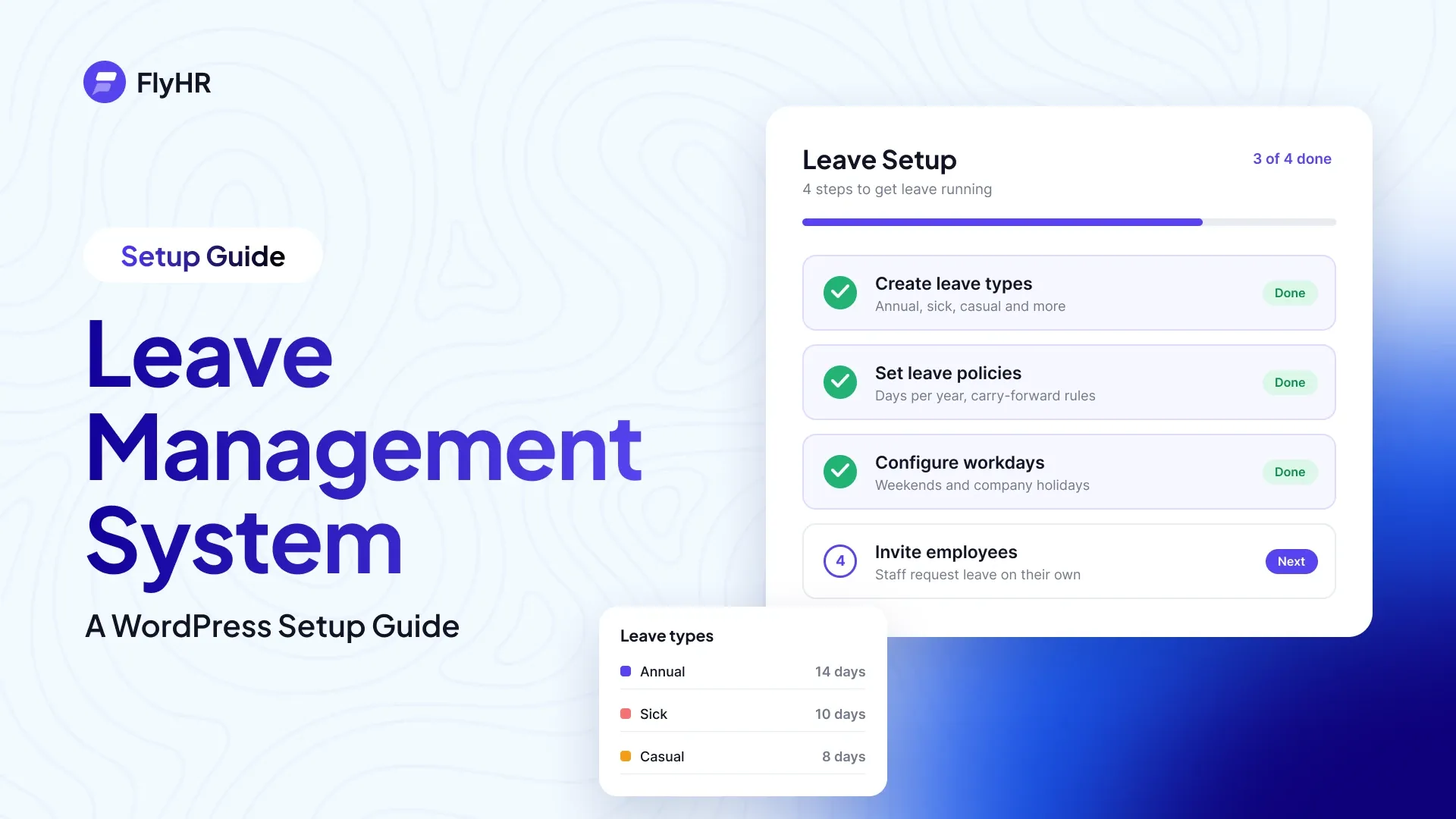
- Set the working week and holidays. Mark each weekday as a full day, a half day or a non-working day. Then add your company holidays one by one or as date ranges, for example December 24 to 26 as one entry.
- Check the six ready-made leave types. Annual, Sick, Casual, Maternity, Paternity and Bereavement are ready. Add your own, such as study leave.
- Create a policy. Set the days per financial year and the scope: employee type, department, designation, gender, marital status or location. Add a waiting period if leave starts after probation.
- Assign it, or let it apply to new hires. Assign the policy to one person or everyone in its scope. New hires can get the right policy automatically.
- Set department leads. A lead is set on a department, not given as a role. Department leads decide for their own team. HR managers can decide on any request, and WordPress administrators are HR managers automatically.
- Let staff file their first request. The employee picks a policy, chooses dates and adds a reason or a file, such as a medical note. FlyHR checks the dates against workdays and holidays. HR managers get an email about the new request, and the employee gets one when it is decided.
Approvers can decide several requests at once. To let staff ask for more days than they have, turn on the Extra Unpaid Leave setting. The leave management feature page has more on each feature.
For Employees: What You See
You sign in with your usual WordPress account, with no separate HR login. Then you can:
- see your own leave balances for each leave type;
- file a leave request, with a file attached if you need one;
- follow each request’s status, from pending to approved or rejected;
- open My Profile to check your job details and your leave.
The FlyHR mobile app for Android and iOS, included with the Agency plan, adds Leave on the Go: check balances and request leave from your phone. More in the employee self-service guide.
When You Need More Than the Basics
Pro plans add rules on top of the free plugin. As of November 2026, the Starter plan (“Track time and run leave by the rules.”) adds, among other things:
- Leave accrual, so leave builds up over the year instead of arriving all at once;
- Carry-forward, to move unused days into the next year;
- Half-day leave, for a morning or an afternoon off;
- Multi-level approval, where the team lead approves first, then it goes to HR for the final say;
- The sandwich rule, which counts the off days that fall between two leave days, so the Friday-to-Tuesday request above would count five.
Each paid plan covers one WordPress site and is priced by site, and every plan, Free included, has unlimited employees. The pricing page lists what each plan includes.
Moving Off a Spreadsheet
Copy things over in this order.
- People first. Add each person with the add-employee form, or turn an existing WordPress user into an employee. Set each person’s department, job title and employee type, because policies match on them (employee management).
- Then policies. Rebuild each rule as a policy, and check that everyone got the entitlement you expect.
- Then balances. The cleanest moment to switch is the start of a new financial year, so no days taken this year live only in the sheet. If you switch mid-year, keep the spreadsheet open beside FlyHR and go through each person’s balance with them before the first new request.
Frequently Asked Questions
What Is a Leave Management System?
A leave management system is one place for leave types, policies, each person’s balance, requests and approvals, and a calendar of who is away. Small teams run one in a spreadsheet, a cloud app or a WordPress plugin. FlyHR is a plugin that keeps all of it inside the WordPress site you already run.
How Is a Leave Balance Calculated?
A balance is the sum of its entries. In FlyHR, every day granted, taken or given back is recorded as its own entry. If a policy grants 20 days and an approved request takes 3, the balance reads 17. In the free plugin, weekends, non-working days and holidays inside a request are skipped, not counted as leave.
Who Can Approve Leave Requests?
In the free plugin, department leads decide for their own team and HR managers can decide on any request. WordPress administrators are HR managers automatically. If you need the team lead to approve first and HR to give the final say, that multi-level approval comes with the Starter plan.
Is There a Limit on How Many Employees I Can Add?
No. Every FlyHR plan, including the free plugin, has unlimited employee records, and there are no per-employee fees. Paid plans are priced by site, and each covers one WordPress site. You can add your whole team, plus new hires, without the cost changing.
Where to Go Next
- Approvals: the leave approval process covers each step from request to decision.
- Employees: employee self-service covers what staff do on their own.
- Hosting: self-hosted HR software covers keeping HR records in your own database.
Written by
Kawsar Ahamed
Digital Marketing Specialist
Kawsar writes about HR and business tools that run inside WordPress, for small teams that want to keep things simple.