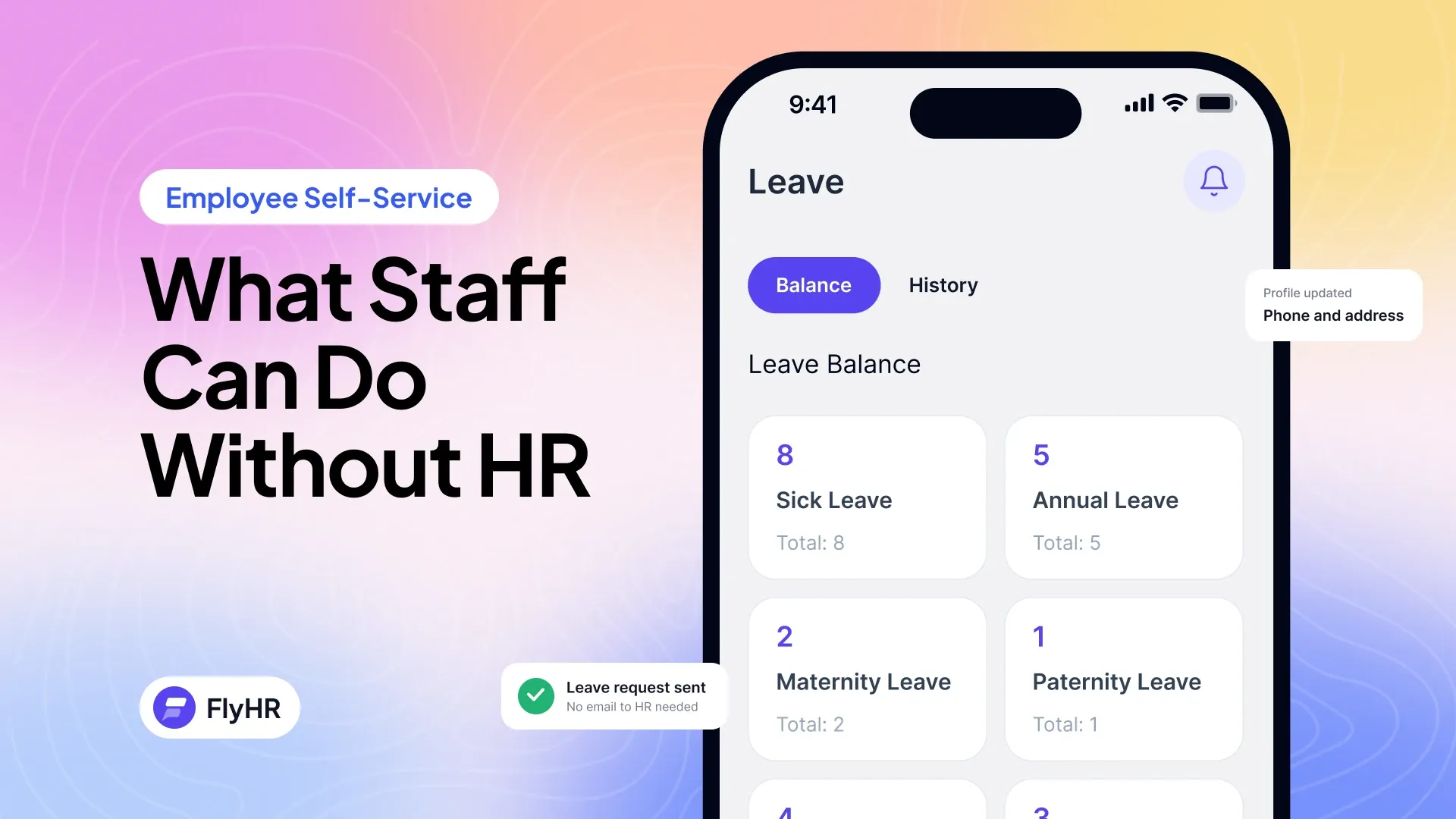
Employee Self-Service: What Staff Can Do Without HR
What employee self-service means for a small team: what staff can check and request on their own, what stays with HR, and how to roll it out in a week.
On this page
Employee self-service means staff look up and do routine HR tasks themselves. They check a leave balance, request time off, follow that request and find a colleague, without writing to HR first. In FlyHR, the HR plugin for WordPress by weDevs, staff sign in with their WordPress account. This guide covers both sides: what staff do, and what HR keeps.
As of November 2026, everything here is in the free plugin except the FlyHR mobile app, which is included with the Agency plan.
Employee Self-Service: Who Does What
Staff handle routine look-ups and requests. HR keeps the decisions, the private HR notes and the rules.
| Staff do it themselves | HR keeps it |
|---|---|
| Check their leave balance for each leave type | Leave policies: which types exist and how many days each gives per financial year |
| Request leave with dates and a reason or a file, such as a medical note | The decision: department leads decide for their own team, HR managers can decide on any request |
| Follow each request from pending to approved or rejected | Private HR notes, visible to HR managers only |
| Open My Profile, with its Job, Leave and Notes tabs | Adding people and ending employment |
| Browse the team directory | Company holidays, the working week and the financial year |
In FlyHR, this split rests on two roles. HR Managers get 15 permissions. Employees get 6. WordPress administrators are HR managers automatically.
A department lead is not a third role. You set a lead on a department, and they decide leave for that team. The employee management page shows both roles side by side.
For HR: Why It Helps a Small Team
In a team of 10 to 50 people, HR may be one person, sometimes a founder with HR as a side job. Many of the messages they get are look-ups. How many days do I have left? Did you see my request?
Self-service lets the employee find those answers alone. Here is what changes for HR.
Balance questions answer themselves. The answer sits on the employee’s Leave tab. FlyHR records every day granted, taken or given back as its own entry, and a balance is the sum of its entries. Grant someone 20 days, approve 3, and the balance reads 17. When someone asks why, the entries show how it was reached.
Requests live in one place. A request is filed in FlyHR, not in a chat thread. You see pending, approved and rejected lists, and bulk decisions handle several at once.
Fewer requests need fixing. FlyHR checks the dates against workdays and company holidays before a request is sent. Asking for more than the balance only works if you turn on the Extra Unpaid Leave setting.
You are not the only approver. Department leads decide for their own team. Email alerts tell HR managers about each new request, and tell the employee when it is decided.
To see the effect, count the “how many days do I have left” messages in the month before you switch it on, and in the month after.
For Employees: What You Will See
This section is for staff. Here is what you will find when you sign in.
Signing In
You use your WordPress account for the company site. There is no separate HR login. FlyHR sits inside the WordPress dashboard.
My Profile
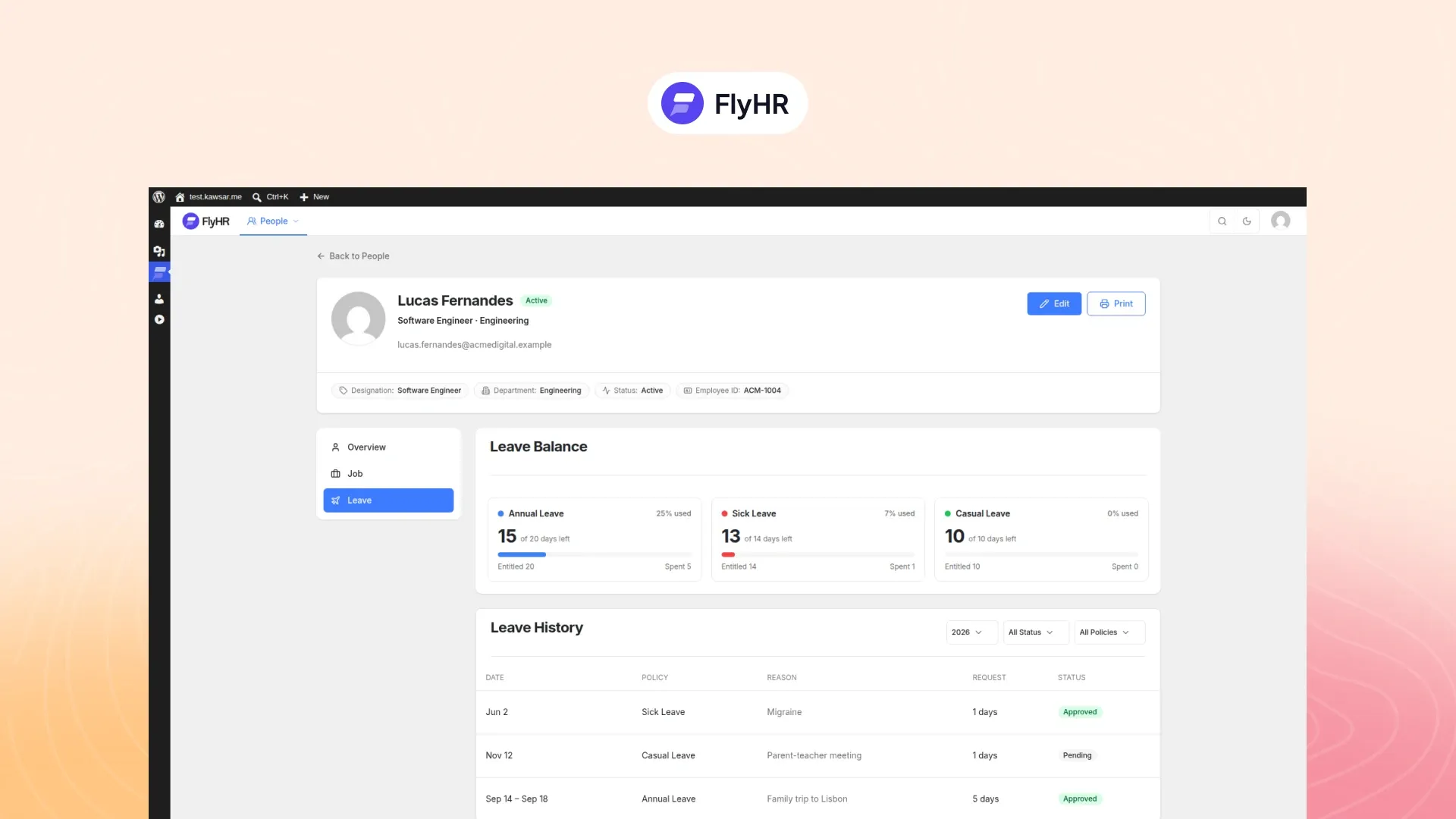
My Profile groups your record into three tabs: Job, Leave and Notes.
The Job tab holds your job information and shows what changed, and when. The Leave tab shows your balances and their history. If something on your record looks wrong, ask HR to check it.
Your Balances
Each leave type you are on, such as Annual, Sick or Casual, shows its own balance. Which types you get depends on your company’s leave policies. Some start only after a waiting period, such as probation.
Requests and Their Status
Filing a request (a holiday request, in UK terms) takes four steps:
- Pick the leave policy, such as Sick leave.
- Choose your dates. FlyHR checks them against workdays and company holidays before the request goes out.
- Add a reason, and a file if you need one, such as a medical note.
- Send it, then follow the status: pending, approved or rejected.
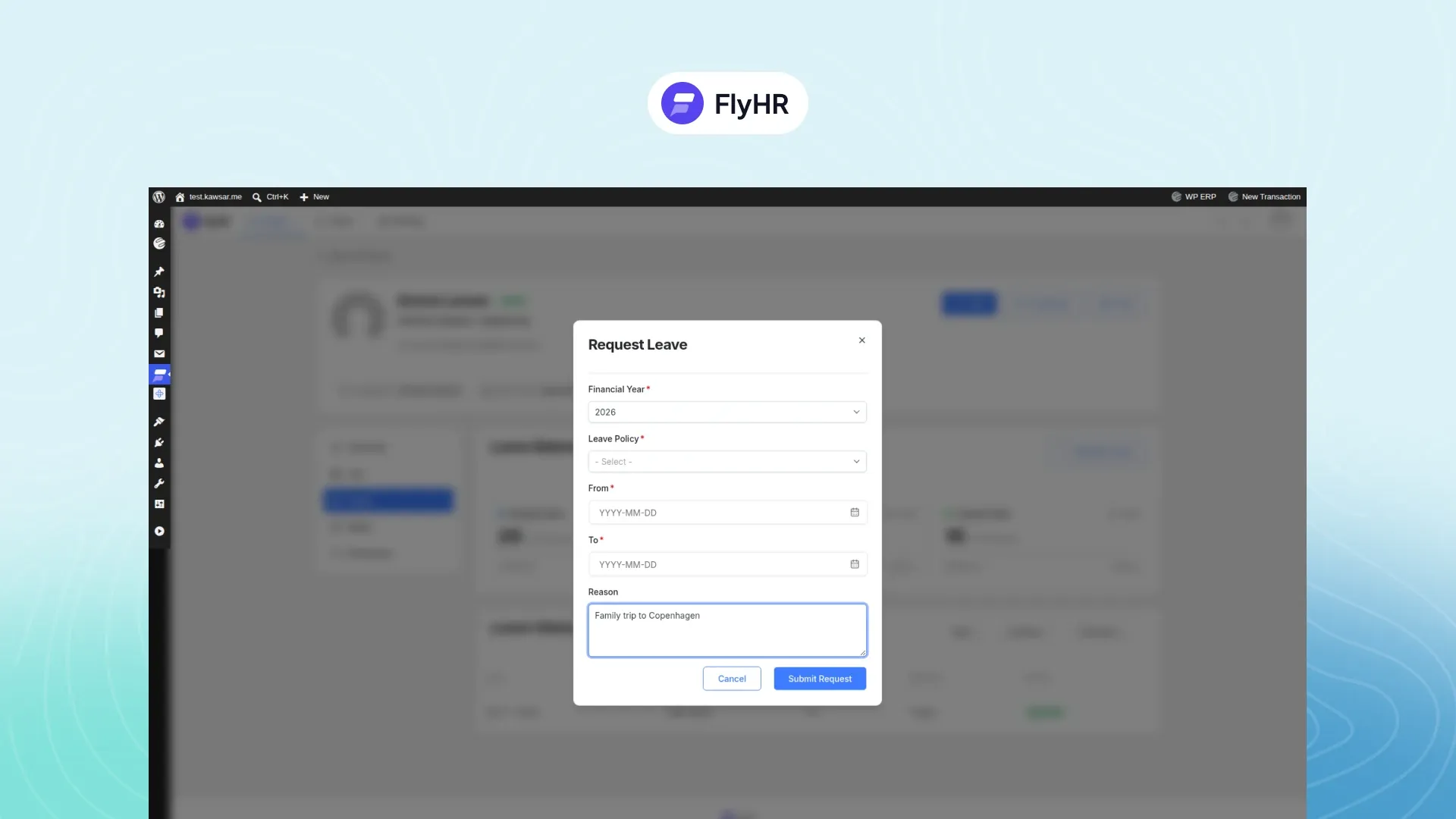
Your department lead or an HR manager makes the decision. You get an email when they do, so there is no need to chase.
The Team Directory
You can browse the team directory. It helps in your first weeks, while you learn who works where.
What Stays With HR
Above all, three things stay with HR.
- Private HR notes. Private HR notes are visible to HR managers only.
- Decisions. Approving or rejecting leave stays with department leads, for their own team, and with HR managers, for any request.
- Policy changes. Leave types, days per financial year, company holidays and the working week are set by HR managers.
Rolling It Out in a Week
This checklist suits a team of 10 to 50 people. If FlyHR is not installed yet, the plugin is on WordPress.org.
- Day 1: check your leave setup. Balances come from your leave types and policies, so check those first. The seven-step setup wizard covers departments, job titles, leave types and your working week. The leave management page shows what a policy can do.
- Day 2: link accounts and give roles. Someone who already has a WordPress user can become an employee from that account. For a record with no login yet, FlyHR turns it into a WordPress user with the correct role in one step. Staff get the Employee role, and HR Manager stays with the people who run HR. WordPress administrators are HR managers automatically, so review who holds that role.
- Day 3: set department leads. Give each department a lead, who will decide leave for that team. A team without a lead still gets answers, because HR managers can decide on any request.
- Day 4: test with one person. Ask one colleague to sign in, check a balance and file a short request. Decide it as their lead, then check that HR managers got the new-request email and your colleague the decision.
- Day 5: send one short note to staff. Say where to sign in, that their usual WordPress login works, where to find balances and who decides requests. FlyHR’s Announcements can post it to everyone, or a plain email does the job.
Self-Service on the Phone
Some staff never sit at a desk. The FlyHR mobile app for Android and iOS brings self-service to their phone. Three features matter here:
- Leave on the Go. Check balances and request leave anywhere, then track each request’s status while department leads or HR decide.
- Team Directory. Call, message or email anyone in one tap.
- Who’s Out Today. Leave, birthdays and anniversaries at a glance.
Anyone with the employee role in FlyHR signs in with their WordPress username and password. Every action in the app shows up in your FlyHR dashboard.
The standard FlyHR app is included with the Agency plan (“Hire, train and automate as you grow.”). On the Starter or Business plan, you can order a custom-branded app instead. The mobile app page has the details, and Pro plans lists what each plan adds.
Frequently Asked Questions
What Is Employee Self-Service?
Employee self-service lets staff handle routine HR tasks themselves. Typical tasks are checking a leave balance, requesting time off, following a request’s status and finding a colleague in the directory. HR keeps the decisions, the policies and private HR notes. In FlyHR, staff do this inside the WordPress dashboard with their WordPress account.
Do Employees Need a Separate Login?
No. In FlyHR, staff sign in with their existing WordPress account, so there is no separate HR login or extra password. If someone has an employee record but no WordPress user yet, FlyHR turns the record into a WordPress user with the correct role in one step. WordPress administrators are HR managers automatically.
Is Self-Service Worth It for a Team of 10?
Often, yes. In a team of 10, HR may be one person, and many of their messages are look-ups such as “how many days do I have left?” Self-service puts those answers on each employee’s Leave tab. Setup comes down to four tasks: link accounts, give the Employee role, set department leads and send one note.
Can Employees Use Self-Service on Their Phone?
Yes, with the FlyHR mobile app for Android and iOS. Leave on the Go checks balances and requests leave, Team Directory reaches anyone in one tap, and Who’s Out Today shows who is away. The standard app is included with the Agency plan. Staff sign in with their WordPress username and password.
Where to Go Next
- Leave Management System: A WordPress Setup Guide sets up the leave types and policies behind each balance.
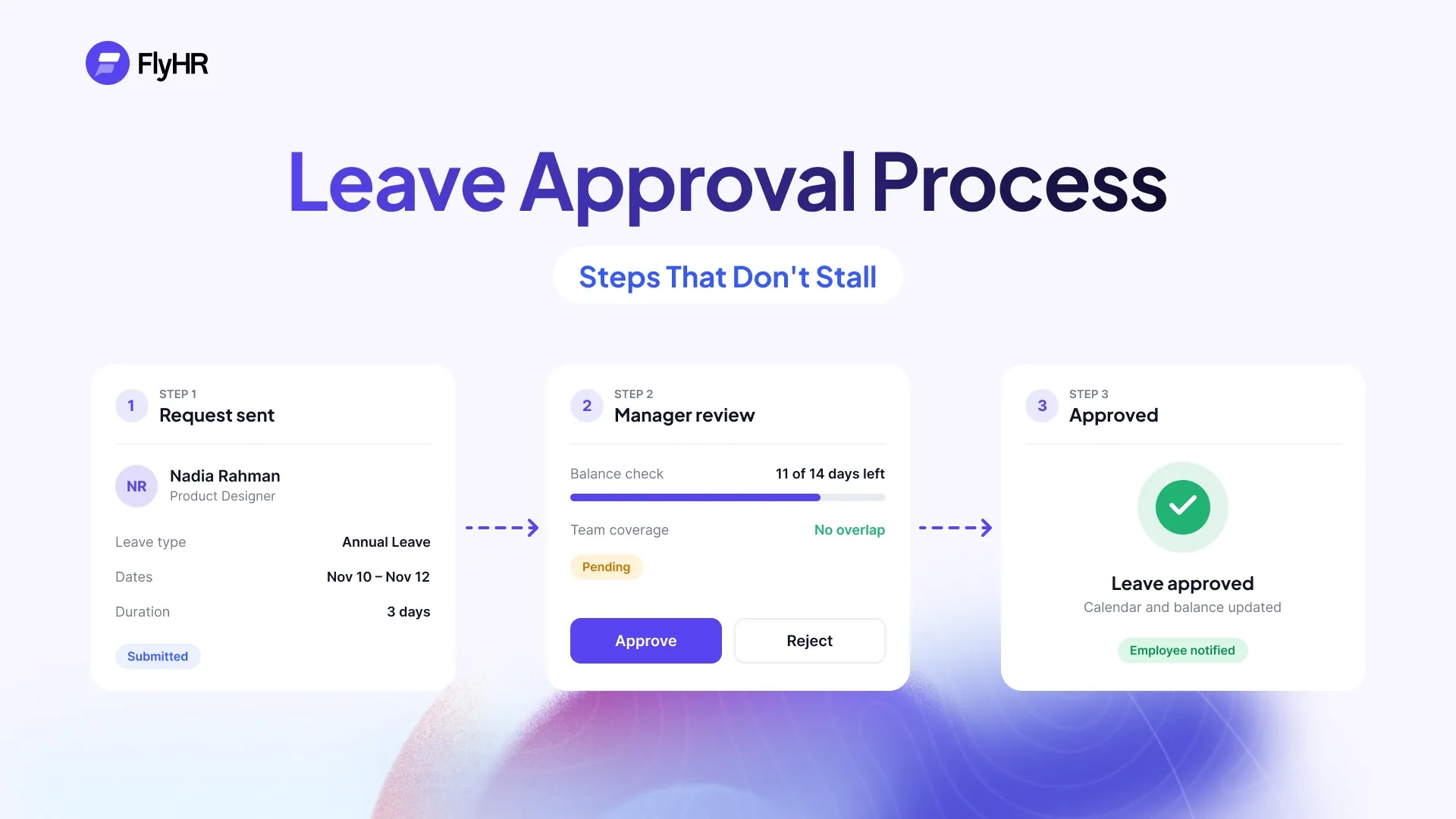
- Leave Approval Process: Steps That Don’t Stall covers what happens after an employee presses send.
- Self-Hosted HR Software on WordPress, Explained explains what running HR on your own site means.
Category
HR TipsWritten by
Kawsar Ahamed
Digital Marketing Specialist
Kawsar writes about HR and business tools that run inside WordPress, for small teams that want to keep things simple.