Self-Hosted HR Software on WordPress, Explained
What self-hosted HR software is, where employee records actually sit, how per-employee and per-site pricing compare, and how it works in WordPress.
On this page
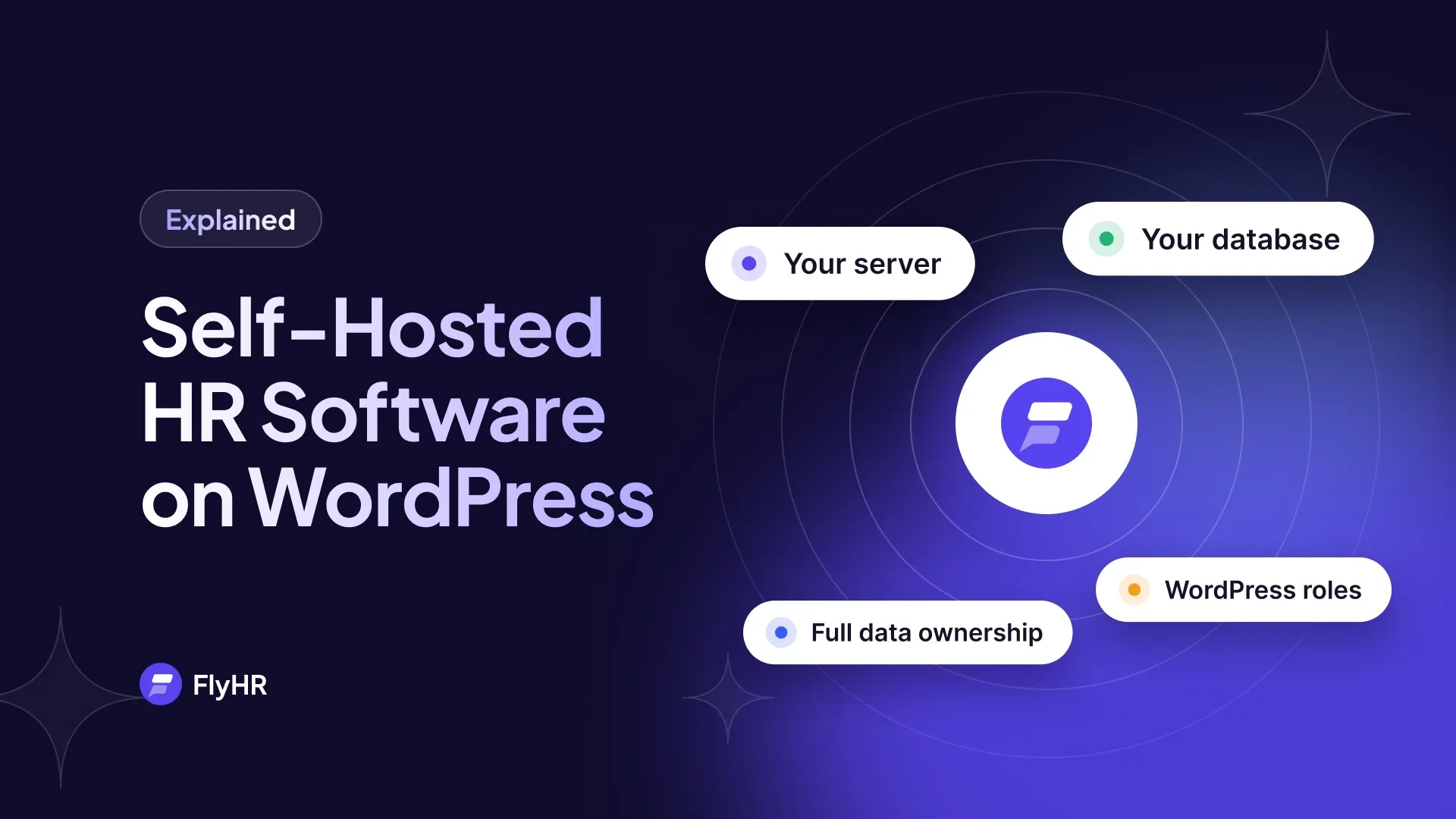
Self-hosted HR software keeps employee records in a database you control, not on a vendor’s servers. On WordPress, that means an HR plugin. The records go into the database your site already uses, with no new server and no outside account. The trade-off is simple: you own the data, so you also own the backups. This guide uses FlyHR, the HR plugin for WordPress by weDevs, as the example.
Three Places Your HR Data Can Live
Broadly, an HR tool stores its records in one of three places. They differ less in features than in who holds the data, who keeps it running, and how you pay for it.
A Cloud HR Tool
You open an account and the vendor stores names, addresses, pay and leave on its own servers. You usually pay a monthly fee for each employee. The vendor patches the software and runs the backups. For a team with no technical help, it asks the least of you.
A Standalone App on Its Own Server
You rent a server, install an HR application on it and keep the whole stack running yourself. Nobody else holds the records. In return, you run a second piece of infrastructure with its own database, updates and security. This is the classic picture of self-hosted software.
A Plugin Inside Your WordPress
Your WordPress site already runs on hosting, with a database and user accounts. An HR plugin moves in alongside them. You install it from the Plugins screen, and employee records become rows in your site’s database. There is nothing new to rent and no second login for staff.
| Cloud HR tool | Standalone app | WordPress plugin | |
|---|---|---|---|
| Who holds the data | The vendor | You | You |
| Cost shape | Monthly fee per employee | Server, plus any license | Hosting you already pay for, plus any license |
| Who patches it | The vendor | You | You, from the Plugins screen |
| How staff sign in | A separate login | Usually the app’s own login | Their WordPress account |
What Self-Hosted HR Software Is Not
Three assumptions travel with the term. Each one is worth checking.
It is not automatically free. Hosting costs money, and a lot of self-hosted software is sold with a license. You still pay, just to the host and any plugin maker instead of a cloud vendor.
It is not the same as open source. Self-hosted describes where software runs. Open source describes the license and whether you can read and change the code. FlyHR is released under the GPL, but the two questions are still separate.
It does not settle privacy law for you. Self-hosting answers where records sit and which companies handle them. Retention, consent and access requests are still yours to manage.
What It Costs as You Grow
A cloud HR tool is usually priced per employee per month, so the yearly bill is the fee times your headcount times twelve. FlyHR is priced by site, never per employee. Every plan, including the free plugin, has unlimited employee records, and each paid plan covers one WordPress site.
The cloud column below uses $8 per employee per month. That is the default on the savings calculator on our pricing page. The calculator does not name a tool, and the cloud figures are plain arithmetic.
| Yearly cost, as of October 30, 2026 | 10 people | 25 people | 50 people |
|---|---|---|---|
| Cloud HR tool at $8 per employee per month | $960 | $2,400 | $4,800 |
| FlyHR free plugin | $0 | $0 | $0 |
| FlyHR Starter, one site | $99 | $99 | $99 |
| FlyHR Business, one site | $249 | $249 | $249 |
| FlyHR Agency, one site | $499 | $499 | $499 |
The FlyHR rows stay flat because headcount never enters the price. Each Pro plan can also be paid once for a lifetime instead of yearly. Pro plans add attendance and shifts on Starter, payroll and documents on Business, and hiring and training on Agency. Hosting is not in the table, since your site already runs on it.
What You Need Before You Start
The list is short.
- WordPress 6.4 or newer and PHP 7.4 or newer. Tools, then Site Health, then Info shows what you run.
- A backup you have restored once. This is the real cost of self-hosting. Test a restore on a staging site before you add anyone’s records.
- One named owner. Someone applies updates, checks that leave settings are right and answers when a screen looks wrong. Write the name down.
How an HR Plugin Works Inside WordPress
FlyHR keeps its records in its own wp_flyhr_* tables, apart from your posts and pages. In the free plugin, employee records never leave your site. Some Pro features reach outside by design: Dropbox document storage on Business, and the AI Job Post Writer, AI Talent Pool and SMS notifications on Agency. Each uses a service you choose. The FlyHR mobile app, included with Agency, reads and saves data through App Bridge, so no copy sits with a third party.
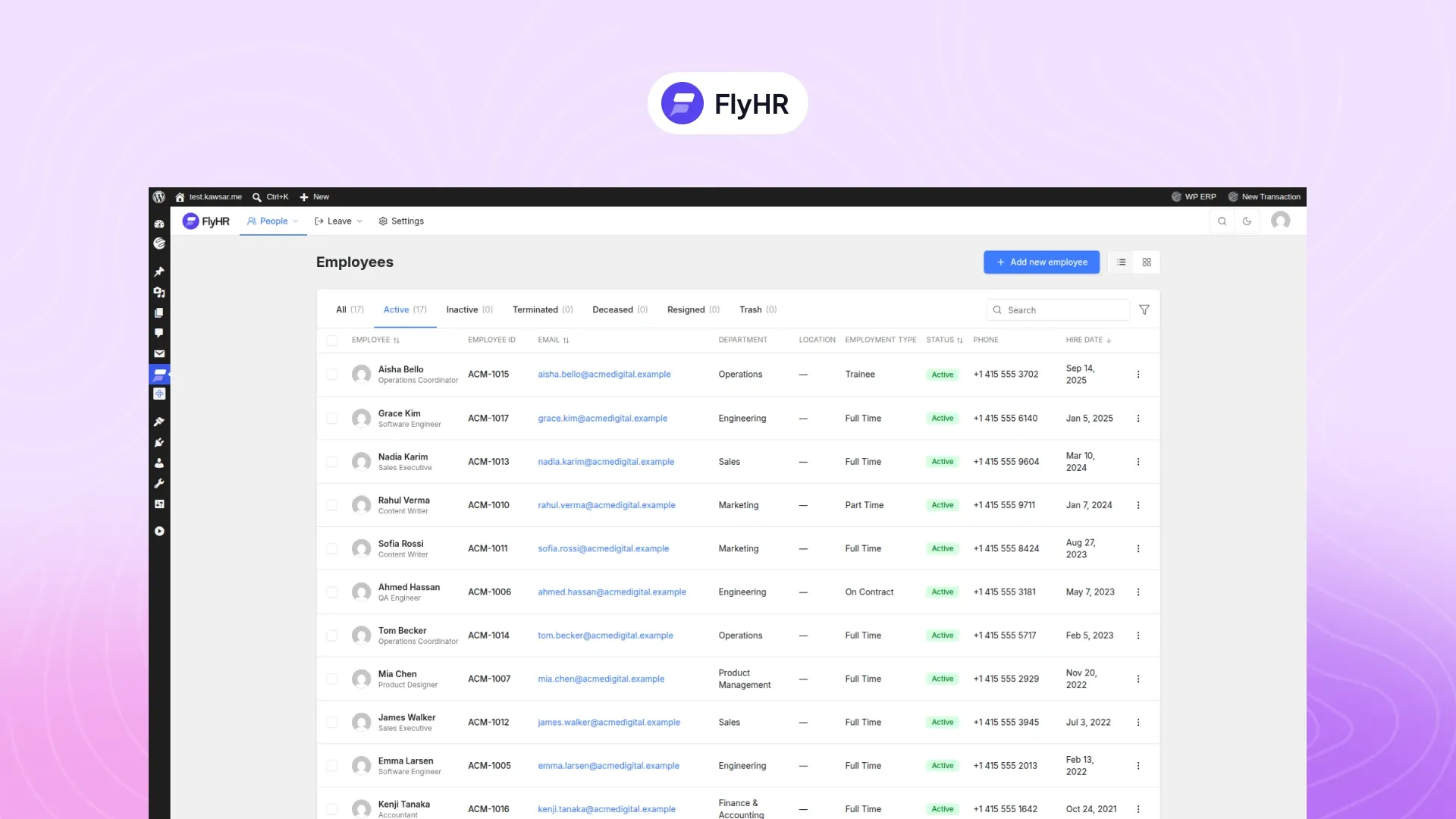
Staff sign in with their WordPress account. There is no separate HR login.
There are two roles. HR Managers get 15 permissions and Employees get 6, and WordPress administrators are HR managers automatically. A department lead is not a role. It is set on a department, and that lead approves leave for their own team. The employee management page shows both roles side by side.
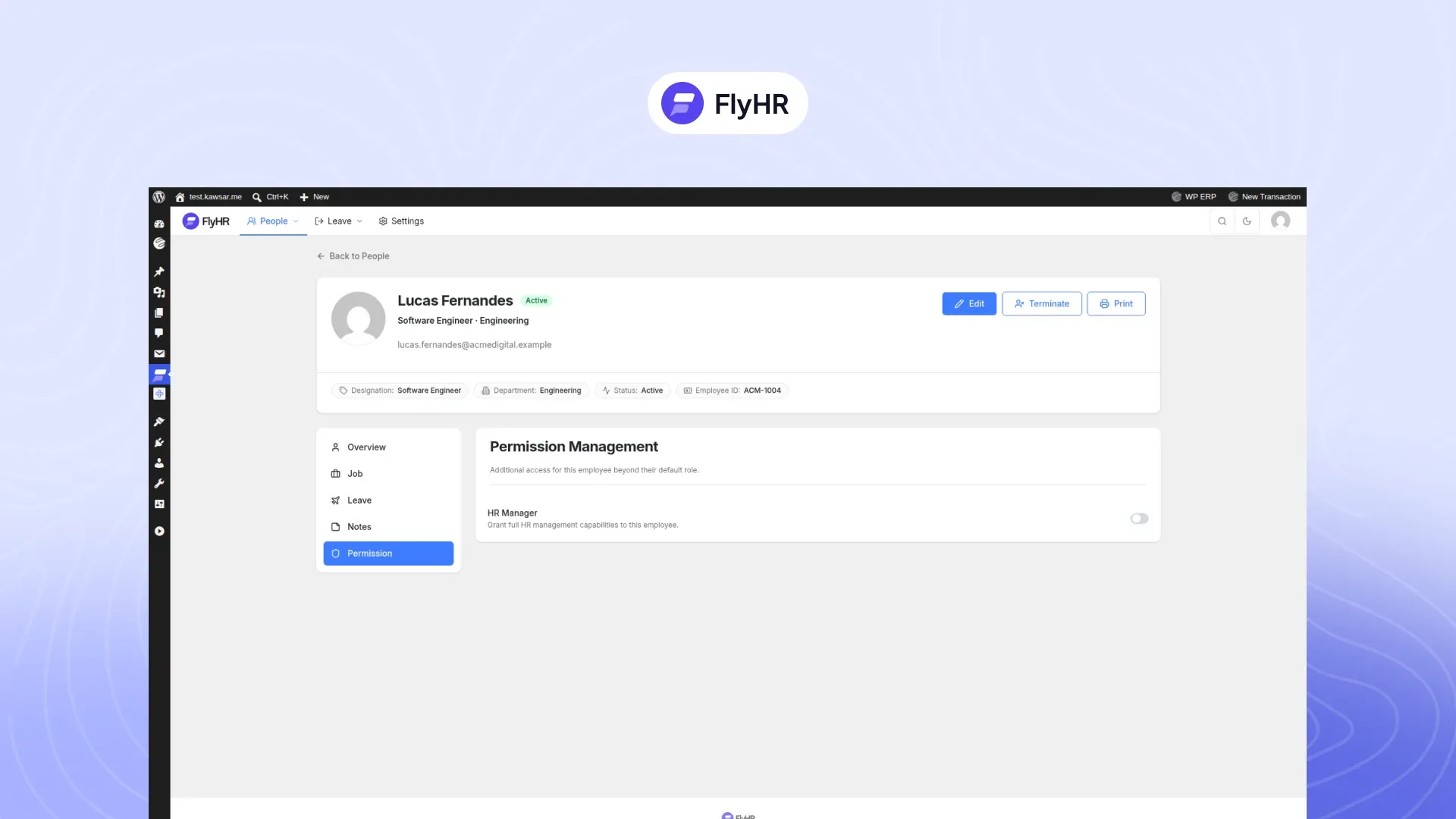
FlyHR runs inside the WordPress admin and adds nothing to your public pages, so your theme does not affect it. It uses its own database tables and runs heavy jobs in the background.
Who Should Stay on a Cloud HR Tool
Self-hosting is not the right answer for every team.
Stay on a cloud tool if you want a vendor to file payroll taxes for you. That is a service, and many cloud payroll providers offer it.
Stay on a cloud tool if nobody will own backups and updates. Employee records on a site nobody updates are safer with a vendor.
Stay on a cloud tool if you employ people in many countries and want one vendor to track each country’s rules. A plugin on your own site does not do that work for you.
Trying It on Your Own Site
If none of those apply, test it on a staging copy of your site.
- Check your WordPress and PHP versions under Tools, then Site Health.
- Take a backup and restore it once.
- Go to Plugins, then Add New, search for FlyHR, then install and activate it. It is also on WordPress.org.
- Run the seven-step setup wizard: company, departments, job titles, leave year and types, and your working week.
- Turn a colleague’s existing WordPress user into an employee.
- Ask them to sign in with that account and file a test leave request.
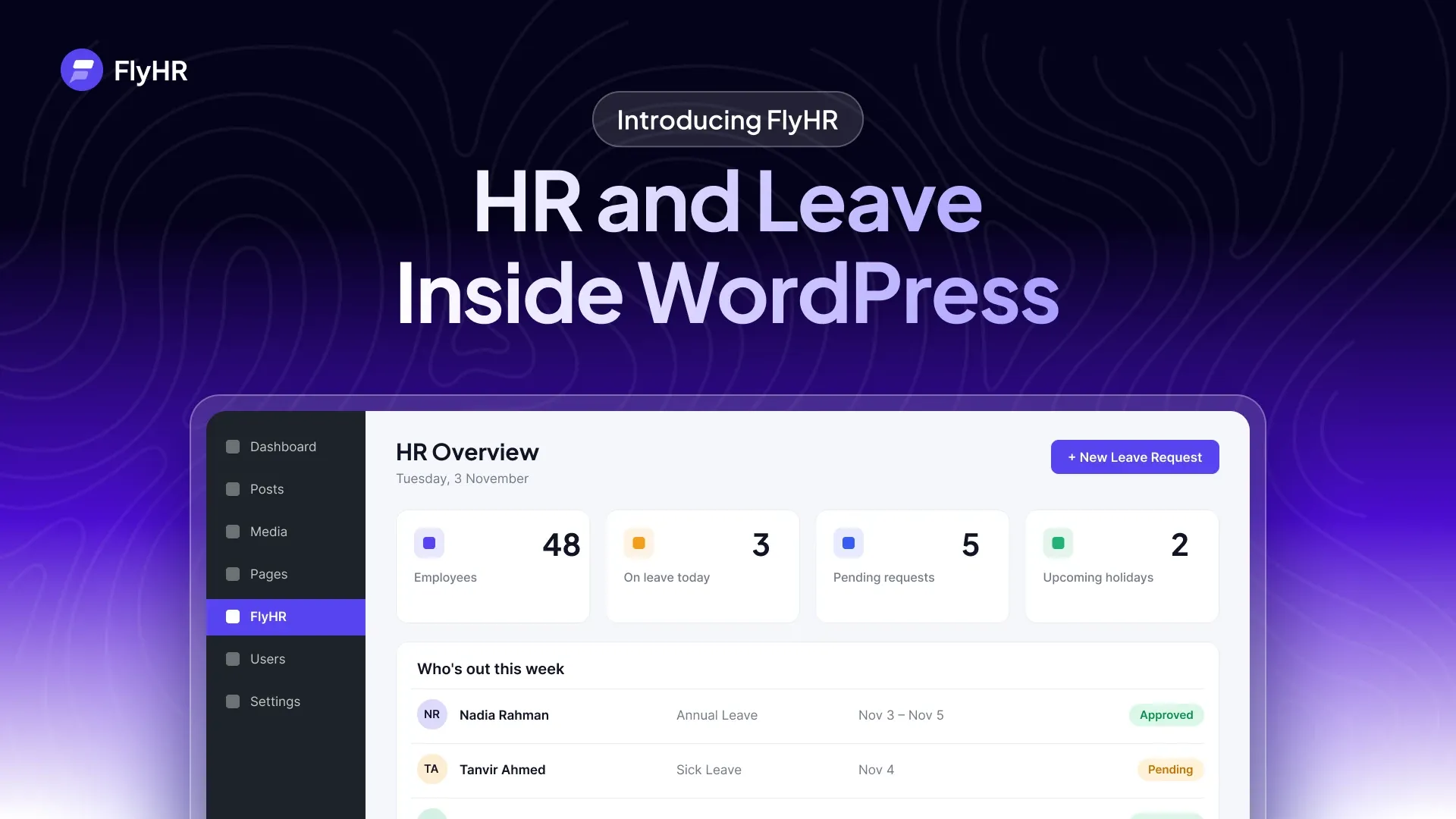
For a full tour of what the plugin covers, read Introducing FlyHR.
Frequently Asked Questions
Is Self-Hosted HR Software Safe?
Its safety depends on the site it runs on. With the free plugin, no outside company holds the records, so one kind of risk goes away. Updates, passwords and backups become your job. Keep WordPress and plugins current, keep administrator accounts few, and test a restore before you depend on it.
Do I Need a Separate Server?
No. A WordPress HR plugin lives on your current hosting and stores its records in your site’s existing database. FlyHR needs WordPress 6.4 or newer and PHP 7.4 or newer. You only need a second server if you choose a standalone HR application, and then its updates and backups are yours too.
Is Self-Hosted the Same as Open Source?
No. Self-hosting is about location, meaning the software runs on hosting you control. Open source is about the license, meaning whether you may read, change and share the code. FlyHR is released under the GPL. For any other tool, it pays to check each point on its own.
Does an HR Plugin Slow Down My Website?
FlyHR is designed not to. It uses its own database tables and runs heavy jobs in the background. It also runs inside the WordPress admin and adds nothing to your public pages, so the pages your visitors open do not change. Check your own hosting after install, as every site differs.
Is There a Per-Employee Fee?
No. FlyHR is priced by site, never per employee, so adding a new hire does not change what you pay. Every plan, including the free plugin, has unlimited employee records, and each paid plan covers one WordPress site. Current prices are on the pricing page, with yearly and lifetime options.
Where to Go Next
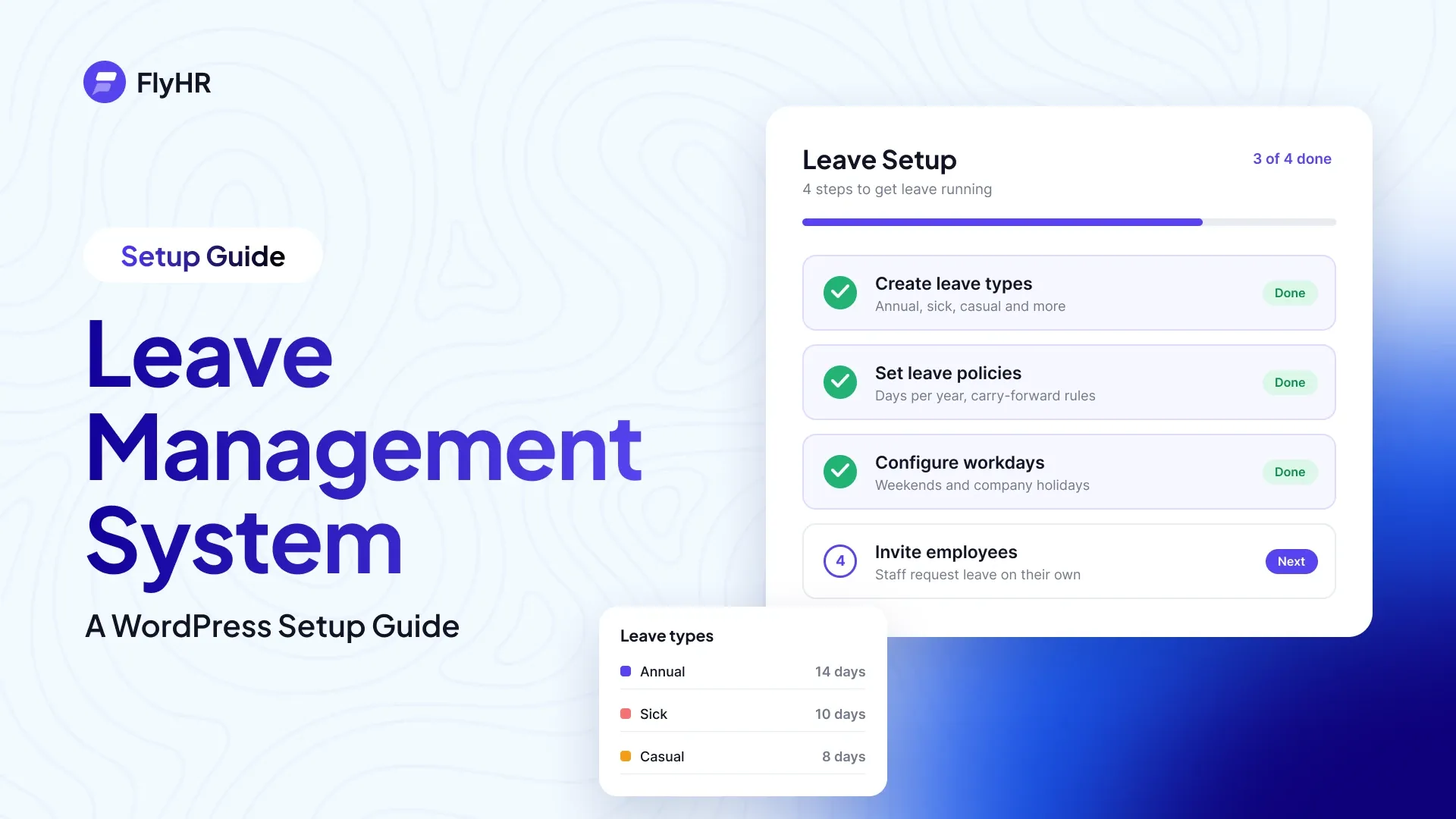
- To set up leave types, policies and approvals, read Leave Management System: A WordPress Setup Guide.
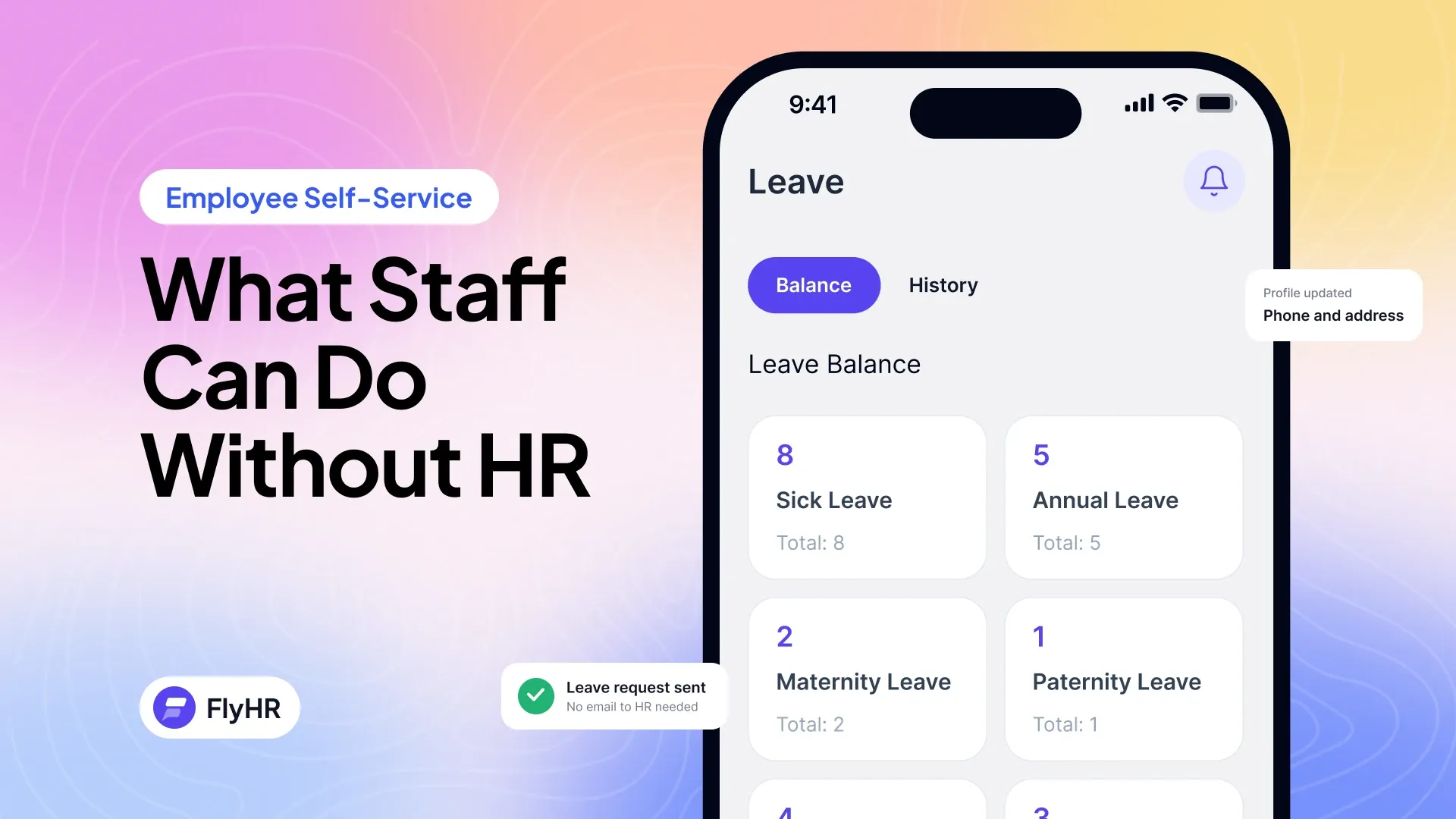
- To see what staff can do on their own, read Employee Self-Service: What Staff Can Do Without HR.
- To see everything FlyHR covers, read Introducing FlyHR.
Category
HR TipsWritten by
Kawsar Ahamed
Digital Marketing Specialist
Kawsar writes about HR and business tools that run inside WordPress, for small teams that want to keep things simple.